
What does "corrupted" actually mean?
Common symptoms:
- Drive asks to be formatted out of the blue
- "Please insert a disk into the USB drive," or "Drive is not accessible" errors
- File names turn to random characters, and files won't open
- Capacity shows as 0 bytes or a fake size
- The drive mounts intermittently or disappears during copy
Likely causes:
- Unsafe removals / sudden power loss while writing
- Bad USB ports/cables or underpowered hubs
- File system errors (FAT32/exFAT/NTFS/APFS/HFS+)
- Logical partition damage or corrupted boot records
- Controller/flash wear, counterfeit capacity drives
- Malware or hidden attributes
We will use CMD to fix it. The command is "Diskpart". It is a command-line disk management tool built into Windows.
It lets you manage hard drives, SSDs, USB drives, and partitions using typed commands.
Please note that after this action, all your data will be cleared. If the data matters, consider backing up first or seeking help from a professional data recovery centre.
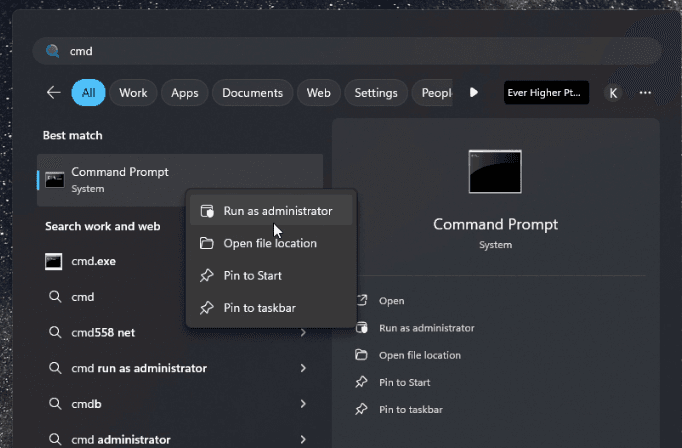
1. Open Command Prompt as administrator.
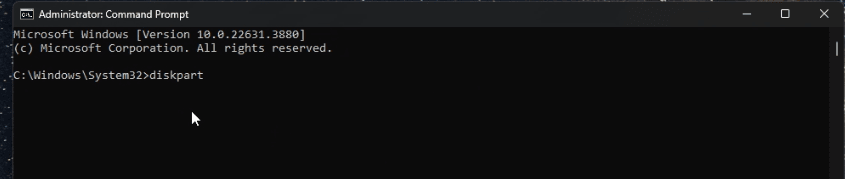
2. Enter "Diskpart" and Enter.
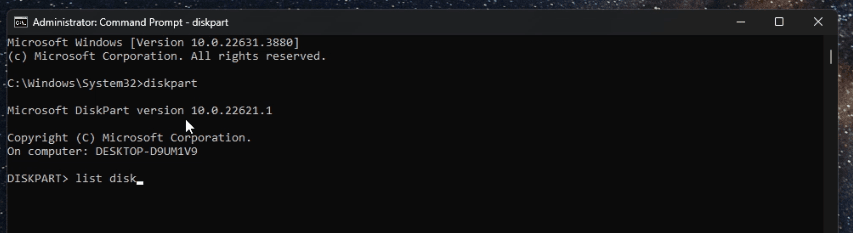
3. When you see "Diskpart>", type "list disk" and press Enter.
4. A list of disks will be provided. Enter "Select disk X" and Enter.
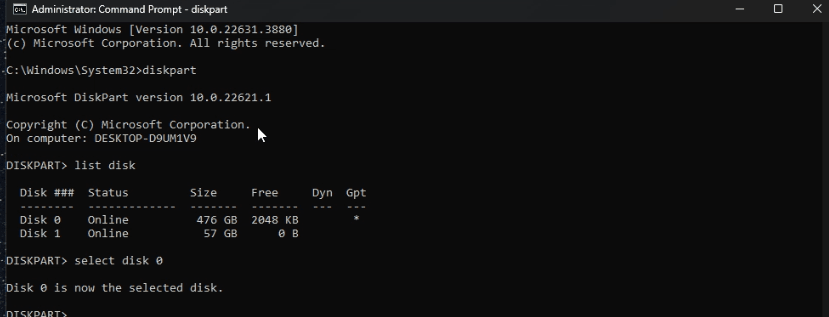
- Review the listed disk sizes to identify your pen drive. Replace 'X' with the disk number. If you've confirmed the correct drive, skip to step 8. Otherwise, follow the next steps to verify.
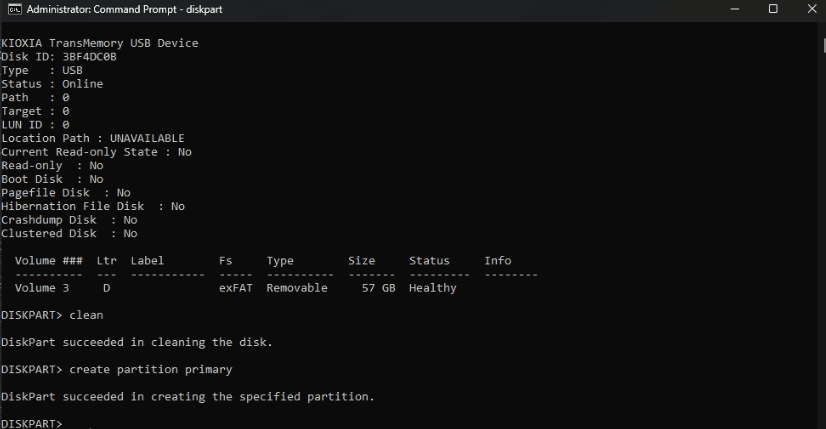
6. Enter "detail disk" and Enter. To check if you have selected the correct pen drive.
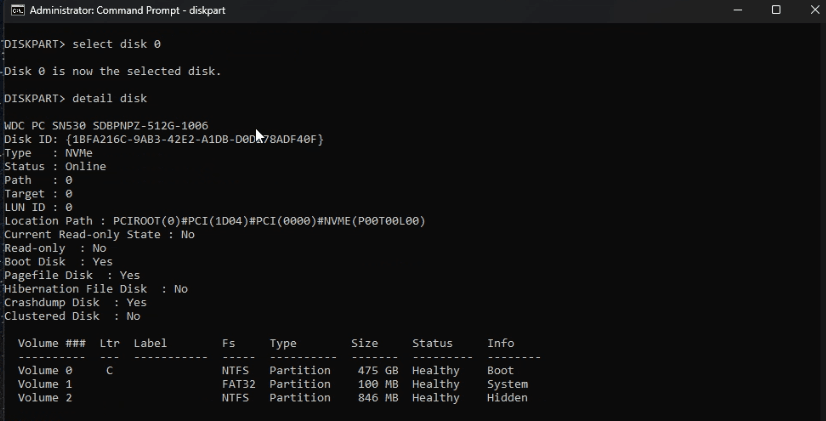
- The external drive types should show as "USB". In this Disk 0, it is an "NVME" =SSD. Not "USB", move on to the next one.
7. Again, select the next disk "select disk x" and Enter. Enter "detail disk" and Enter.
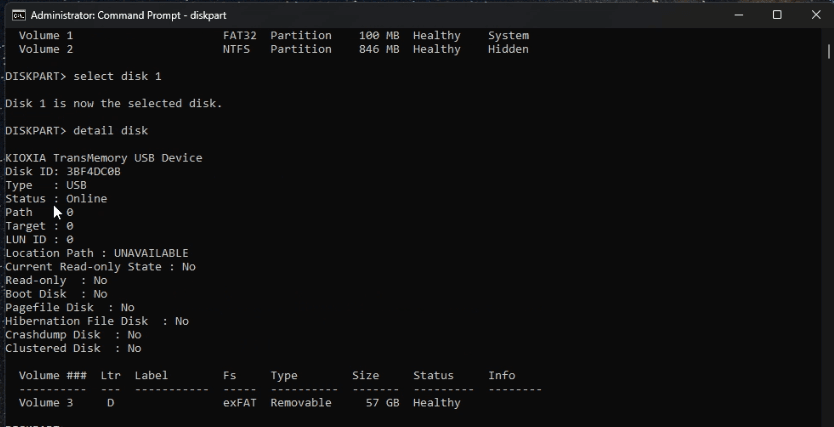
- You have selected the correct drive type "USB".
8. Enter "clean" and Enter.
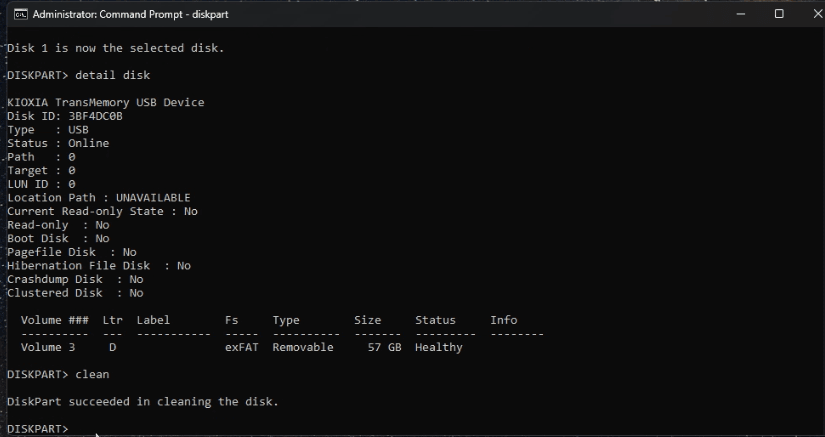
9. Enter "Create a primary partition" and Enter.
10. Enter "format fs=exfat quick" and Enter.
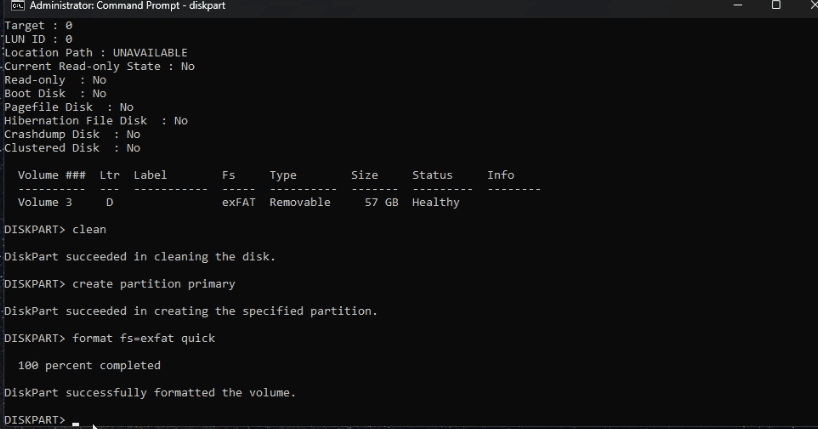
If your pen drive is undetectable or fails to run this command, consider purchasing a new Pen drive.
If what you need is your data, stop doing it yourself and call a professional. Feel free to seek our advice.
EHDR, the expert in data recovery services in Singapore.