
For businesses and professionals, data is everything. Projects, records, customer files, or financials. Losing it can be devastating. In this guide, we'll walk you through a step-by-step data recovery process that keeps your original data safe while maximizing the chance of retrieval.
What You Need Before Starting
To ensure a smooth recovery, prepare the following:
- Original Drive – The storage device containing the lost data.
- External Storage – Use an additional hard drive or USB drive to store recovered files (never recover to the same drive).
- R-Studio Technician (Licensed) – Professional recovery software required for this method.
Step-by-Step: Recovering Data with R-Studio Technician
Step 1: Launch R-Studio Technician
- Select your drive letter to open. For this example, my thumb drive is assigned as the F: drive.

- Click “refresh” if your drive does not show up
- Click "F:" once or double-click

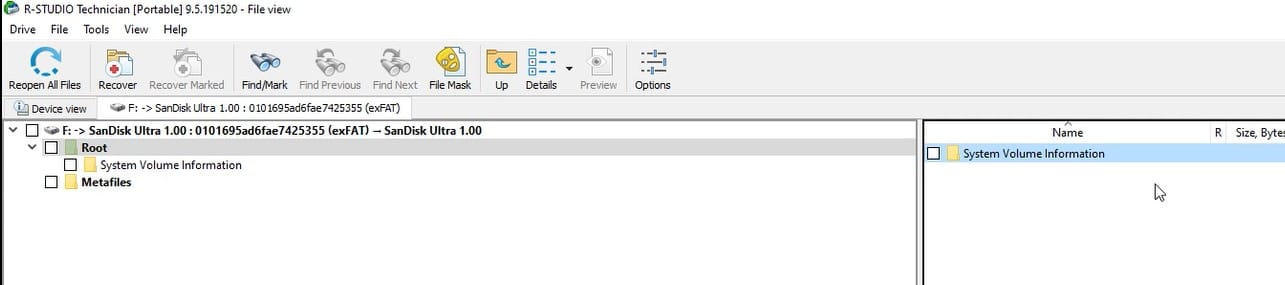
- F: Storage is empty
Step 2: Open Device View
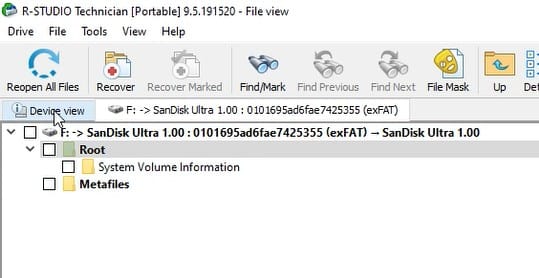
- Navigate to "Device View".
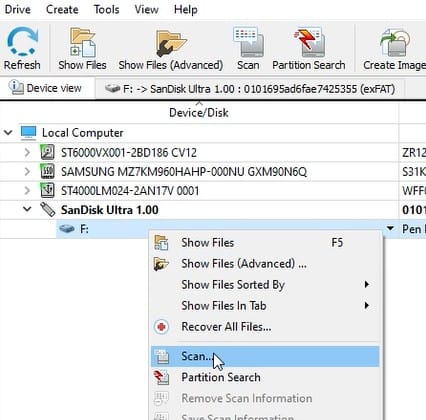
- Right-click the drive and select "Scan".
Step 3: Configure the Scan
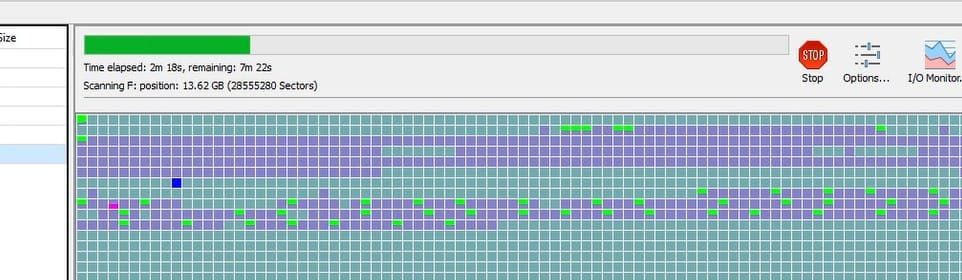
- Adjust the scan settings according to our recommendations.
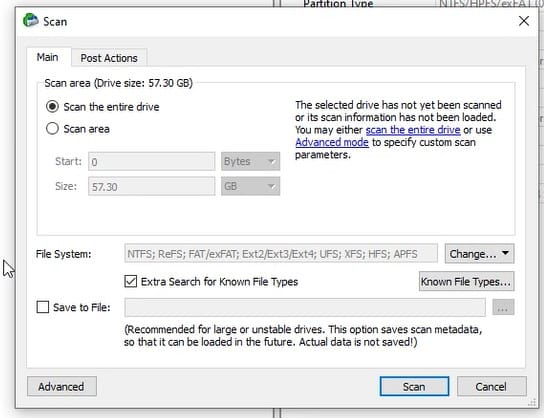
- Start the scan and wait for it to complete.
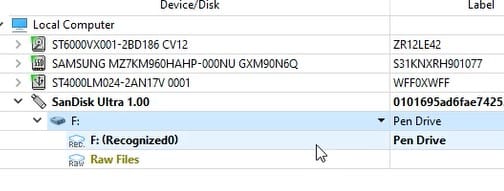
- A new recognized volume will appear (e.g., X: (Recognized0)). Double-click it and wait for it.
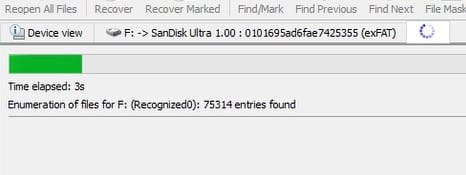
Step 4: Preview Found Files
- Recovered files will appear with red cross icons.
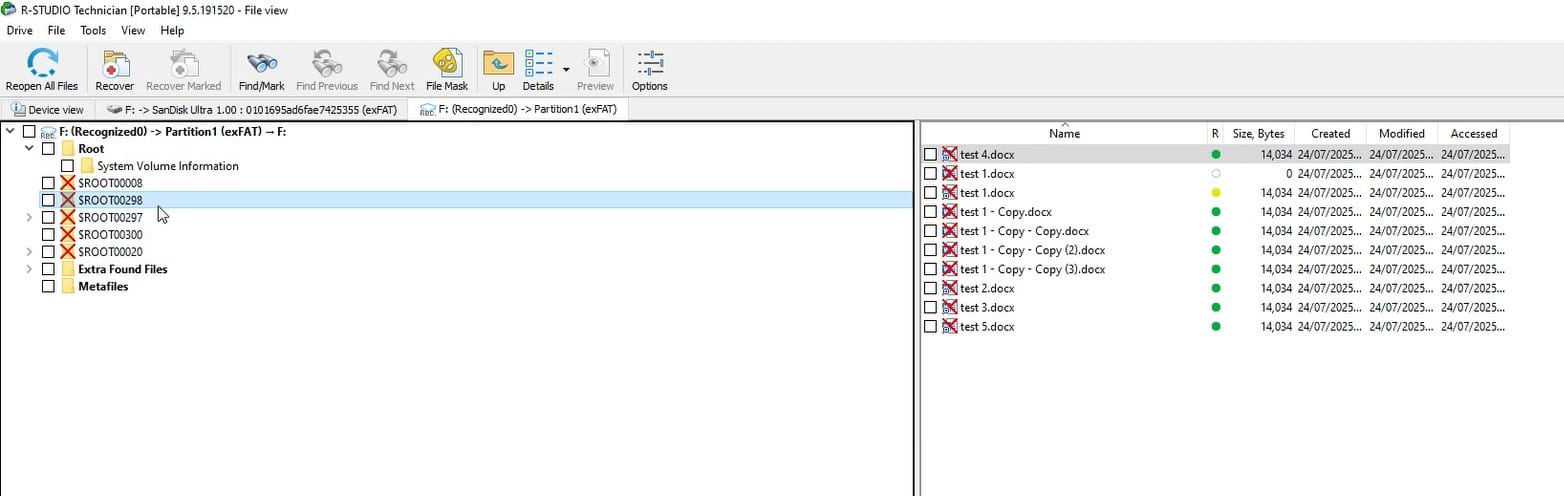
- Preview files where possible to verify integrity.
Step 5: Select Recovery Destination
- Mark the folder you need and click "Recover Mark"
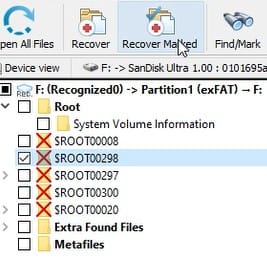
- Click the "..." to choose a location to save your data.
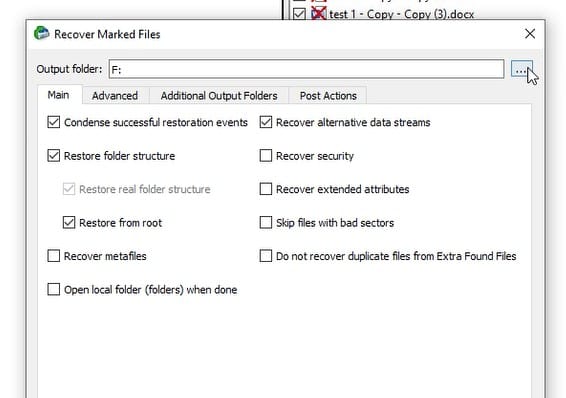
- Choose an external drive (e.g., E:) as the storage location.
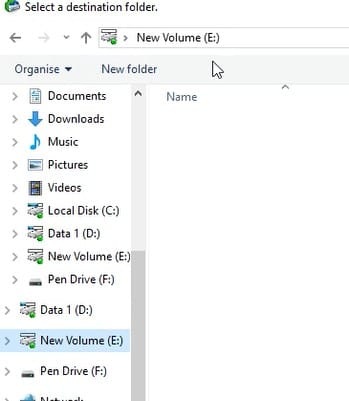
- Avoid saving recovered files to the same drive or location where you deleted your data.
Step 6: Finalize Recovery
- Then, tick the selections below, click "Advance", and then click "OK" to let the process complete.

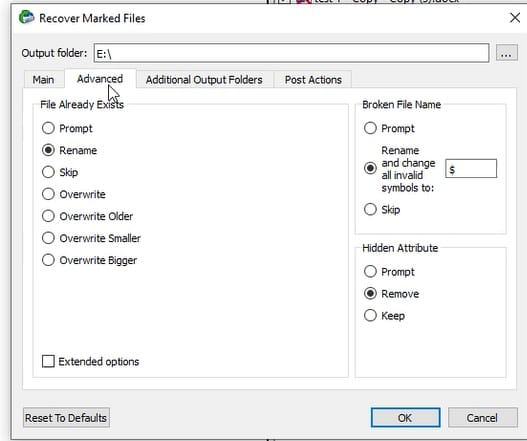
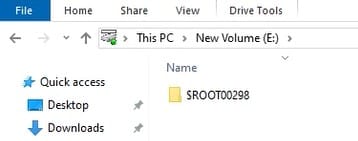
- Navigate to your external drive to access recovered data.
When Software Recovery Isn't Enough
Sometimes, files may still be corrupted or inaccessible after a scan. This usually points to:
- Tier 2 Recovery Needs – Complex logical recovery beyond standard scans.
- Hardware Errors– Internal mechanical or PCB failure, which require specialized tool or laboratory.
In such cases, a professional data recovery service is a viable option to prevent further data loss and potential damage.
Conclusion
With the suggested tool and methodology, you may optimize the chances of recovery. While not every case can be solved with software, following the proper steps ensures the best chance of success.
At EHDR, we stand by our commitment: We Leave No Data Behind. Whether it's a simple recovery or a complex situation, professional support is just a call away.

