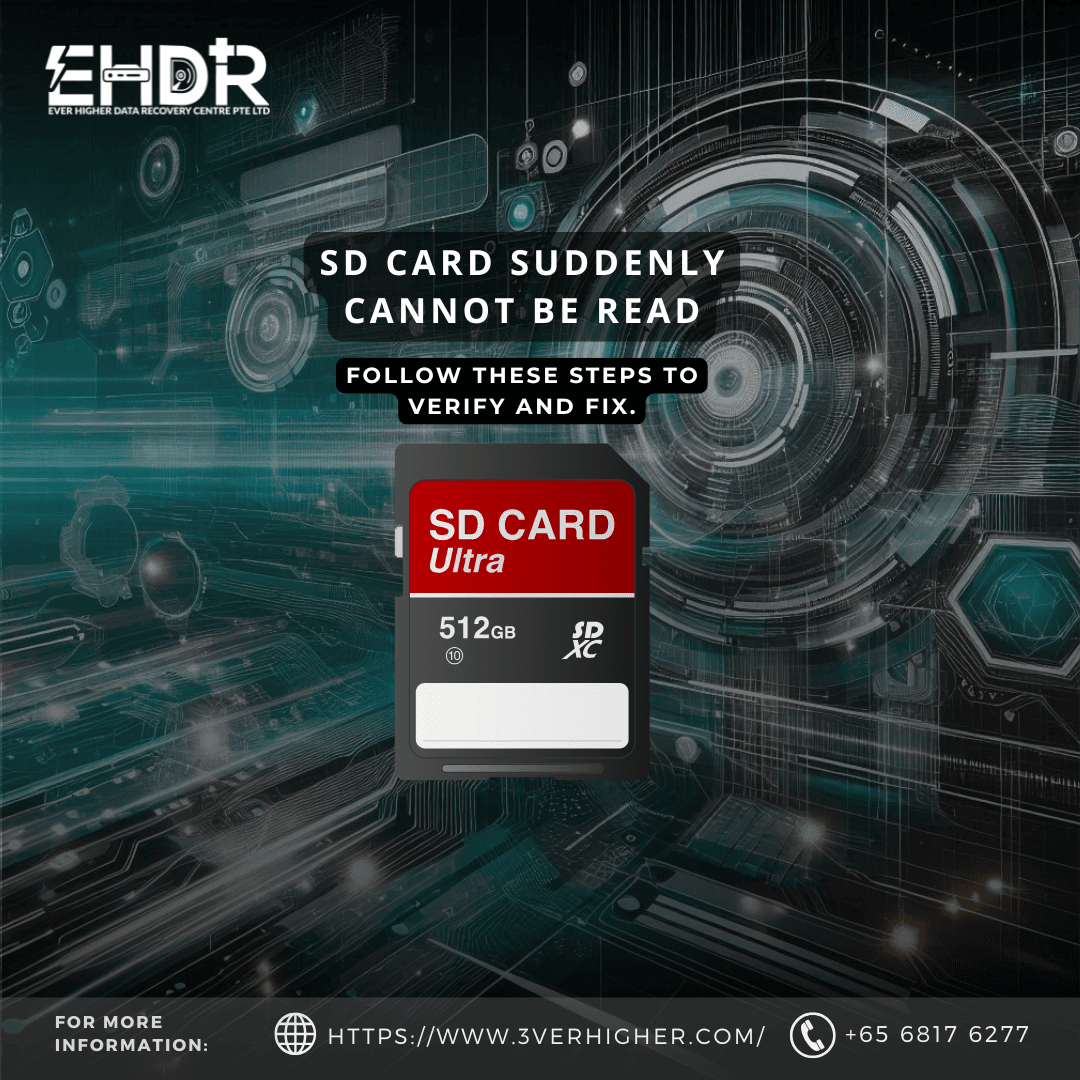
Is it a simple glitch, or are you looking at permanent data loss? Follow these steps to verify and fix.
Step 1: Identifying the Failure Mode
Before attempting a fix, you must distinguish between the two primary types of failure. Choosing the wrong solution for the wrong problem is the main cause of permanent data loss.
- Logical Failure: The card’s hardware is functional, but the file system is corrupted, RAW, or damaged due to improper ejection or software glitches.
- Hardware Failure: Physical damage to the NAND flash chip, the gold contacts, or the internal controller.
Step 2: The "Quick Fix" Checklist (Hardware Basics)
Sometimes the solution is mechanical rather than digital. Perform these checks first:
- The Lock Switch: SD cards have a physical write-protection slider just beside the card. If it’s toggled to "Lock," many card readers will refuse to mount the volume.
- Clean the Contacts: Fingerprint oils and dust can bridge the gold metal pads. Gently wipe the "gold fingers" on the back of the card with a lint-free cloth and a drop of isopropyl alcohol.
- Isolate the Reader: Rule out a faulty laptop slot by trying a high-quality USB card adapter or a different device entirely.
Step 3: Windows Diagnostic Steps
If the hardware seems fine but the files are missing, use Windows Disk Management to see how the OS perceives the device.
- Missing Drive Letter: If the card appears but has no letter assigned (e.g., "Disk 1, Removable"), right-click the partition and select "Change Drive Letter and Paths" to assign one.
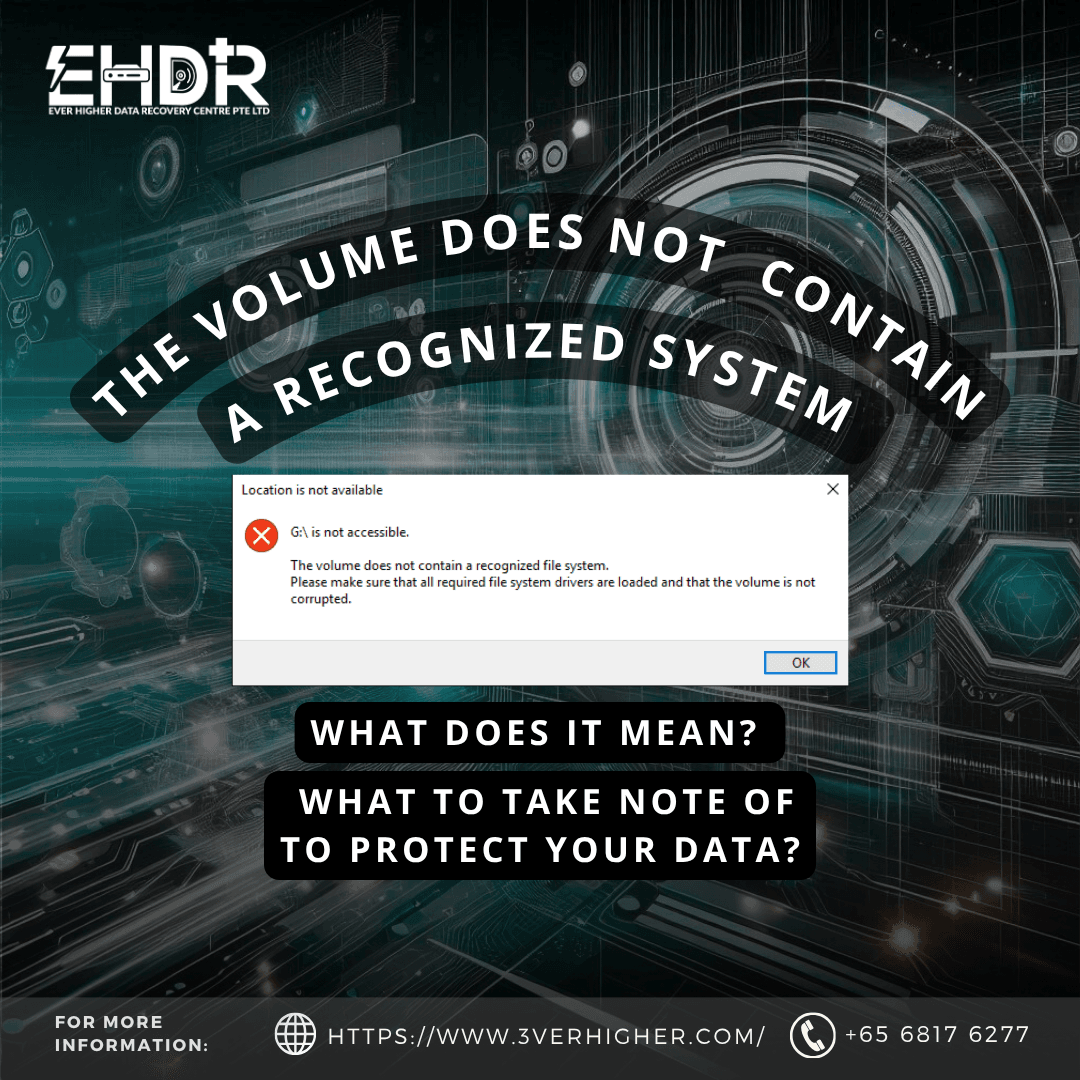
- RAW or Unallocated: If the status shows "RAW," the file system is corrupted. Do not format the card if you need the data. Formatting creates a new file system but can overwrite the pointers to your old data.
Step 4: Advanced CMD Repair (For Detectable Cards)
If the card is detected but inaccessible, you can attempt a "soft repair" using the Command Prompt (CMD).
The CHKDSK Method:
- Run CMD as Administrator.
- Type: chkdsk X: /f /r (Replace X with your card's drive letter). This command attempts to fix file system errors and locate bad sectors.
>>May click here for image view from Step 3 onward.
The Diskpart Method (WARNING: Data Loss): If you do not need the data and simply want to reuse the card, you can use the diskpart command to clean and reinitialize the drive. Click here to view the steps and image of Diskpart process.
Step 5: The "Danger Zone" (For Undetectable Cards)
DIY recovery has its limits. You should immediately unplug the card and seek professional help if:
- The card becomes physically hot to the touch when plugged in.
- The card does not appear in Disk Management at all.
- Repeated attempts to read a failing NAND chip can "cook" its internal components, which makes recovery impossible.
Conclusion
A "dead" SD card isn't always a death sentence for your data. However, the integrity of your files depends on the steps you take first. If the card shows signs of hardware failure, software "fixes" will only cause more damage.
Is your data irreplaceable? Contact us for a professional diagnostic.
EHDR, We Leave No Data Behind.