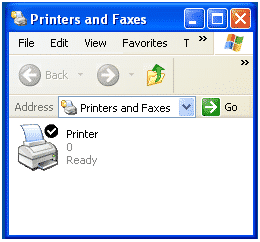

Supposing you have installed a virtual machine (Windows XP Mode) into your Windows 7 OS, and you want to print via your virtual machine. You realized that you cannot find your default network printers.
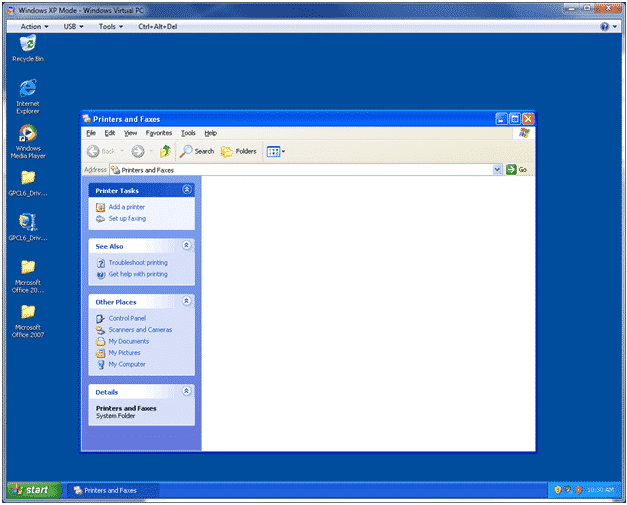
This is the problem I faced when I installed a virtual machine on one of our users. I did some research and found out that when the virtual machine’s network is different from the OS network.
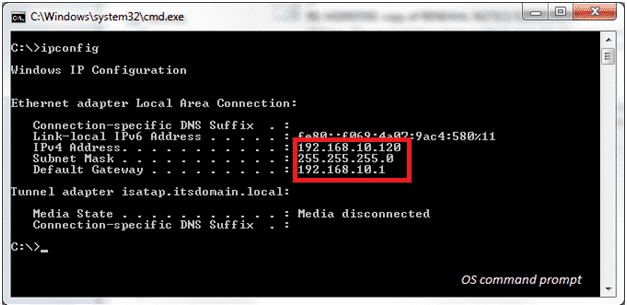
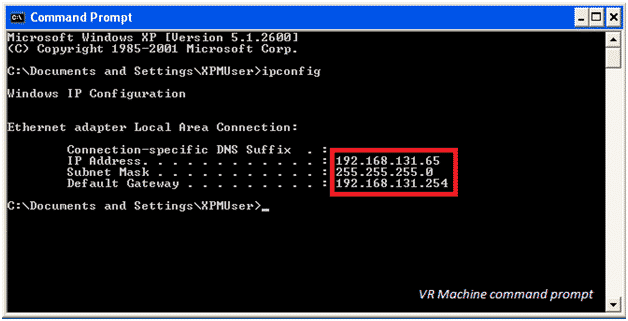
By default, the networking of your virtual machine is set to NAT. And although you are able to connect to the internet via the virtual machine, you are in a different network from your printer. To correct this, you will need to change the networking settings from NAT to your computer’s network card.
Firstly go to the start menu and locate Windows Virtual PC

Right Click on Windows XP Mode, and select Settings

Click on Networking, change Adapter 1 to your network card, and click OK

The network of the virtual machine should now be the same as your printer.

With that you should be able to connect to your printer via Standard TCP/IP port
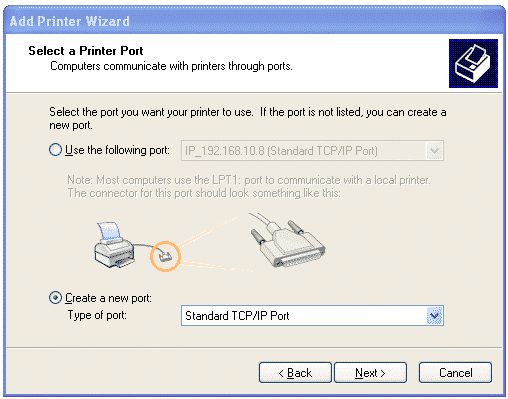
Remember to download the same driver version as your virtual machine.