Data Error Cyclic Redundancy Check: Causes, Diagnosis, and Solutions
Introduction
Whether you're copying files from an external hard drive, accessing important documents, installing software, or backing up critical data, this error can abruptly interrupt your workflow and raise concerns about data integrity.
Fortunately, a Cyclic Redundancy Check (CRC) error is not always a sign of permanent data loss. Understanding what it means, why it occurs, and how to address it can help you minimize risks and restore normal operation.
What Is a Cyclic Redundancy Check (CRC)?
A Cyclic Redundancy Check (CRC) is an error-detection mechanism used to verify the integrity of data during storage or transmission.
When data is written to a storage device or transferred between systems, a mathematical value known as a checksum is calculated and stored. Later, when the data is read or transferred again, the checksum is recalculated and compared against the original value.
If the values match, the data is considered intact.
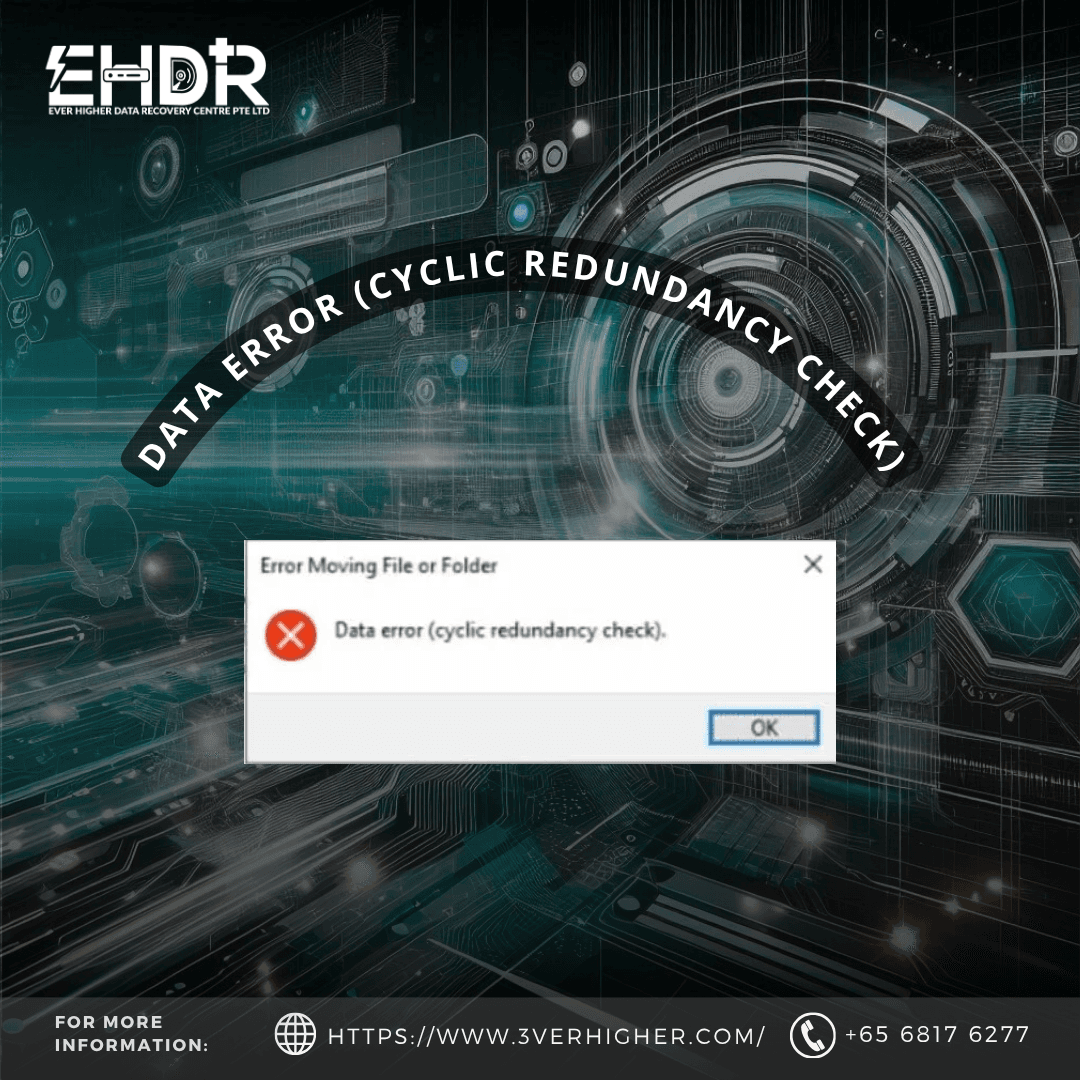
If they do not match, the system generates a message such as:
"Data Error (Cyclic Redundancy Check)"
This indicates that the data has become corrupted or cannot be read accurately.
Common Causes of CRC Errors
CRC errors can originate from both hardware and software-related issues.
Bad Sectors on a Hard Drive
Physical deterioration of a hard disk can create bad sectors that prevent data from being read correctly.
Symptoms may include:
- Slow system performance
- Clicking noises from the drive
- Frequent file access failures
File System Corruption
Unexpected shutdowns, power failures, or software crashes can damage the file system structure.
When the operating system encounters corrupted metadata, CRC verification may fail.
Faulty USB Connections
External drives often generate CRC errors due to:
- Damaged USB cables
- Loose connections
- Faulty USB ports
- Insufficient power supply
Corrupted Files
Individual files may become corrupted because of:
- Incomplete downloads
- Interrupted file transfers
- Malware infections
- Application crashes
Failing Storage Devices
A CRC error might serve as an early warning sign that a hard drive, SSD, memory card, or USB flash drive is approaching failure.
How to Diagnose a CRC Error
Proper diagnosis helps determine whether the issue is temporary or indicative of hardware failure.
Step 1: Identify the Affected Device
Determine whether the error occurs on:
- Internal hard drive
- SSD
- USB flash drive
- External hard drive
- Memory card
- Optical media
If the issue affects only one device, the problem is likely isolated to that storage medium.
Step 2: Test Different Connections
For external devices:
- Use a different USB cable
- Connect to another USB port
- Avoid USB hubs
- Test on another computer
If the error disappears, the problem may be related to connectivity rather than data corruption.
Step 3: Check Drive Health
Use SMART (Self-Monitoring, Analysis, and Reporting Technology) monitoring tools to evaluate drive condition.
Popular tools include:
- CrystalDiskInfo
- Hard Disk Sentinel
Warning indicators include:
- Reallocated sectors
- Pending sectors
- Uncorrectable read errors
- Bad sectors
How to Fix CRC Errors
Method 1: Recover Important Data First
Before attempting extensive repairs, prioritize data recovery.
If the drive is still accessible
- Manually copy accessible files by file. Do not copy all at once. Skip files that hang while you try to copy.
- Avoid saving new data into the drive.
A failing drive can deteriorate rapidly.
Method 2: Run CHKDSK
Windows provides a built-in utility called CHKDSK.
Open Command Prompt as Administrator and execute:
chkdsk X: /f /r
Replace X: with the appropriate drive letter.
Parameters:
- /f repairs file system errors
- /r locates bad sectors and attempts data recovery
This process may take considerable time on large drives.
Things to Take Note
Do not run any malware scans if the drive is not physically healthy. Run a scan only if the monitoring tools show that your drive is 100% healthy. Certain malware strains can damage files or interfere with storage operations. It is because any scan performed on an unhealthy drive could stress it and cause it to fail.
Perform a full system scan using reputable security software.
When CRC Errors Indicate Drive Failure
Repeated CRC errors combined with the following symptoms often suggest impending hardware failure:
- Clicking or grinding noises
- Frequent freezing
- Slow read/write speeds
- SMART warnings
- Disappearing drives
- Increasing bad sector counts
In these situations:
- Back up data immediately.
- Avoid unnecessary disk activity.
- Replace the storage device as soon as possible.
Continuing to use a failing drive significantly increases the risk of permanent data loss.
Preventing CRC Errors
While not all CRC errors can be prevented, several practices reduce the likelihood of occurrence.
Safely Remove External Devices
Always use the operating system's eject function before disconnecting removable storage.
Monitor Drive Health
Periodically review SMART metrics to identify early warning signs.
Protect Against Power Loss
Use reliable power sources
Replace Aging Hardware
Usually, when your drive takes longer to load, it is a sign that it is going to fail. It is time to backup your data into new drive.
Frequently Asked Questions
Is a CRC error always caused by a bad hard drive?
No. CRC errors can also result from faulty cables, corrupted files, software issues, or interrupted transfers.
Can data be recovered after a CRC error?
In many cases, yes. Recovery success depends on the extent of corruption and the physical condition of the storage device.
Does CHKDSK fix all CRC errors?
No. CHKDSK can repair many logical errors, but it cannot repair severe physical hardware damage.
Should I continue using a drive that shows CRC errors?
If CRC errors occur repeatedly, back up your data immediately and evaluate the drive's health. Persistent CRC errors often indicate underlying hardware issues. Seek help from a professional data recovery centre to handle it.
Conclusion
A Data Error (Cyclic Redundancy Check) is a warning that the system cannot verify the integrity of data being read or transferred. While the issue may be as simple as a faulty cable or corrupted file, it can also signal file system damage or an impending storage device failure.
The most important response is to protect your data first, diagnose the source of the problem, and take corrective action before the situation worsens. By combining regular backups, proactive drive monitoring, and proper maintenance practices, organizations and individual users can significantly reduce the impact of CRC-related issues and ensure long-term data reliability.