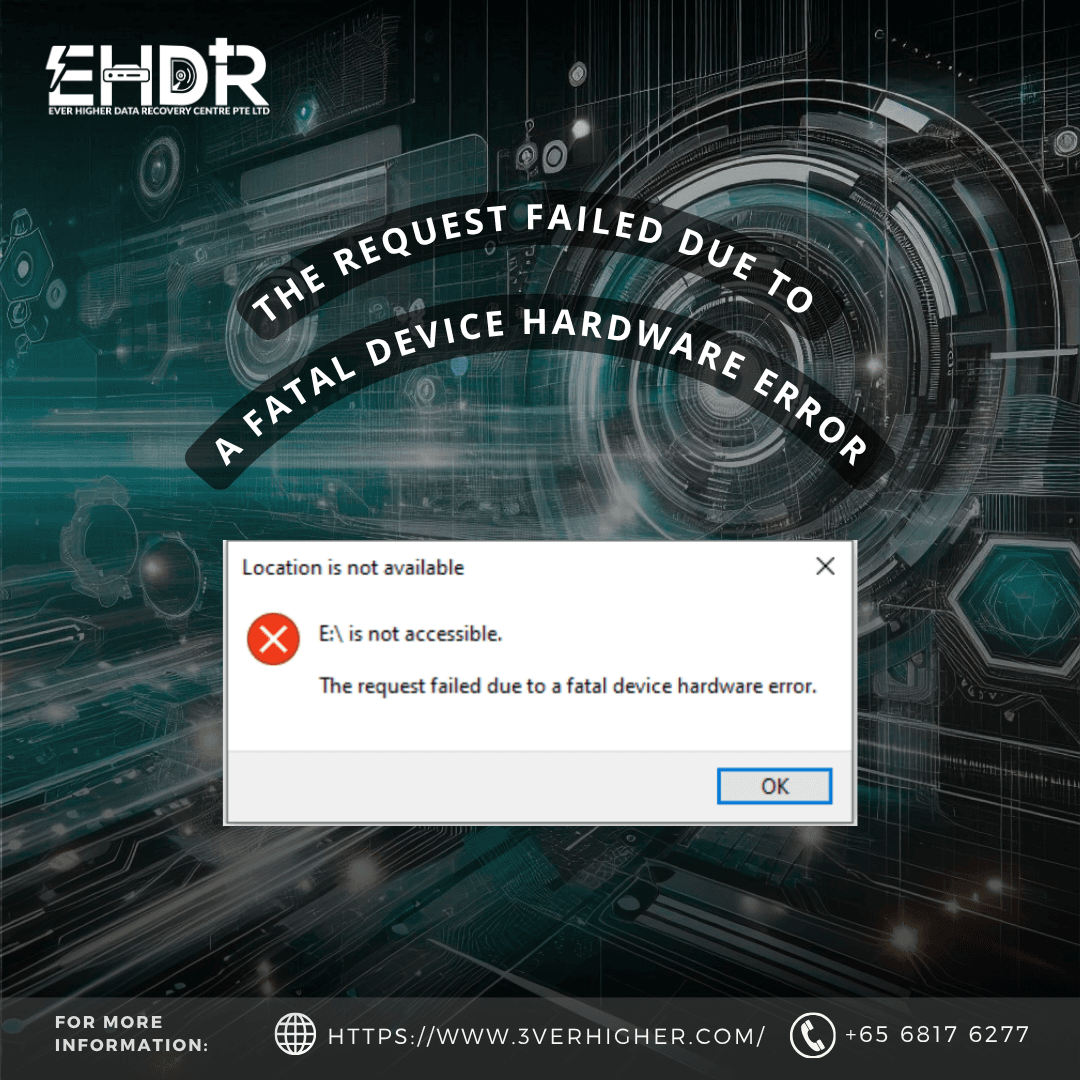
How to Handle “The Request Failed Due to a Fatal Device Hardware Error”
What Does a "Fatal Device Hardware Error" Actually Mean?
The Safest Steps
Step 1: The Golden Rule – Check Drive Health First
Use Hard Disk Sentinel (HD Sentinel)
- Download and launch Hard Disk Sentinel.
- Select your problematic drive from the left-hand sidebar.
- Look at the Health and Performance bars.
- If Health is low (e.g., below 80%) or shows "Bad": Stop immediately. Your drive is experiencing a genuine hardware failure. Disconnect it and seek professional data recovery services to save your files.
- If Health is 100% (Perfect): Great news! The issue is likely logical (software-based). You can safely proceed to the fixes below.
Step 2: Basic Hardware Double-Checks
- Change the cable: A faulty USB or SATA cable can mimic a dead drive.
- Switch ports: Plug the drive directly into a motherboard port (on the back of a desktop) rather than a USB hub.
- Try another computer: If the drive works on another PC, your original computer’s drivers or ports are the culprit.
Step 3: Fixing the Drive via Command Prompt (CMD)
1. Run CHKDSK (Check Disk)
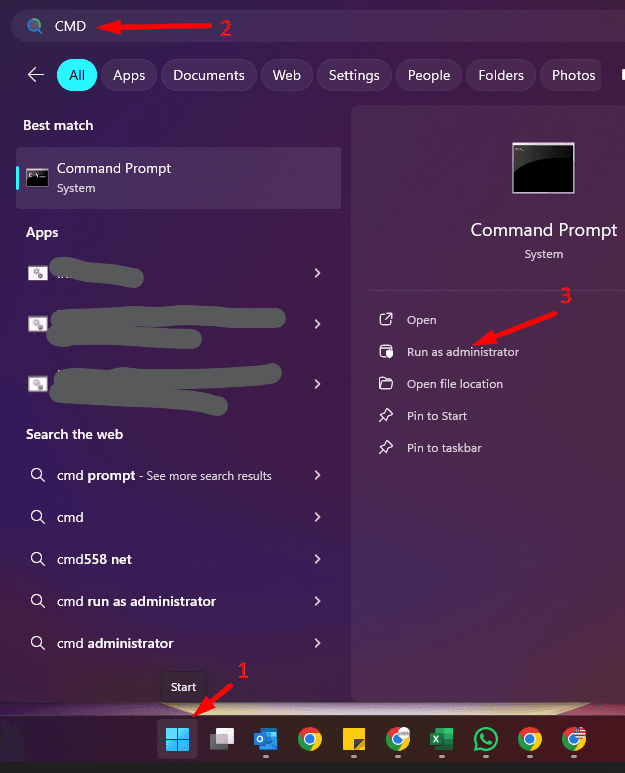
a. Press the Windows Key, type cmd, right-click on Command Prompt, and select Run as administrator.
b. Type the following command and press Enter (replace X with the actual drive letter of your problematic drive): chkdsk X: /f /r
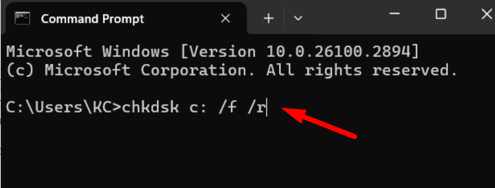
c. Windows will scan the drive. The /f flag tells it to fix errors, and /r tells it to locate bad sectors and recover readable information.
⚠️ Note: If CHKDSK gives you an error saying "Cannot open volume for direct access," or if it hangs for hours, stop. This points back to a deeper hardware issue.
2. Update or Reinstall Disk Drivers
a. Right-click the Windows Start button and select Device Manager.
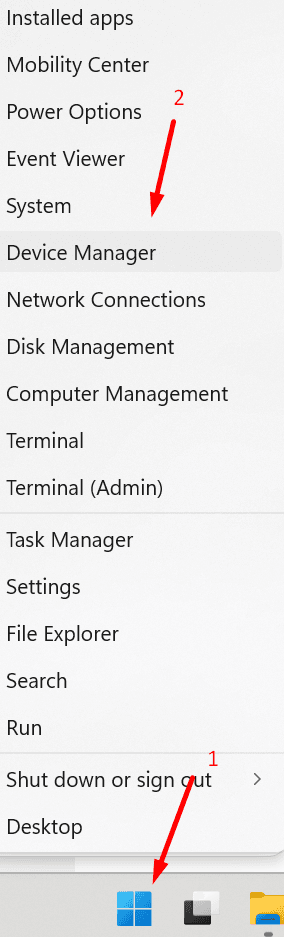
b. Expand the Disk drives section and right-click your problematic drive and select Update driver.
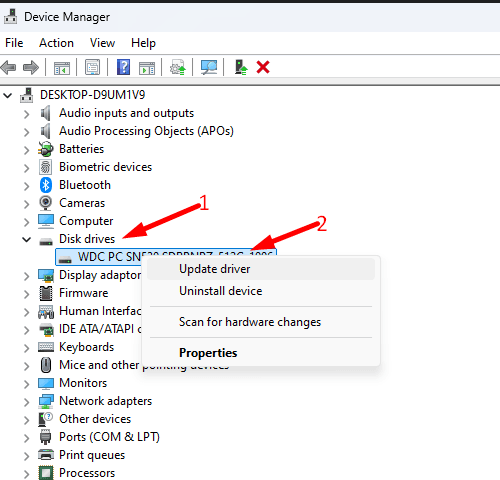
c. Alternatively, select Uninstall device, unplug the drive, and plug it back in. Windows will automatically reinstall a fresh copy of the driver.
What NOT to Do When Facing a Fatal Error
- Do Not Format the Drive: If Windows prompts you with a window saying, "You need to format the disk in drive X: before you can use it," hit Cancel immediately. Formatting creates a new, blank file map, making recovery significantly more difficult.
Do Not Run CHKDSK or System Scans if storage is not healthy: Tools like chkdsk or disk check utilities work by aggressively reading and writing to a drive to re-organize data. If your drive's read-write head is physically scratching the internal media, running these scans will completely shred the surface where your data lives.