In our previous article, “The Volume Does Not Contain a Recognized System | What Does It Mean and What to Take Note of to Protect Your Data”. We explained why this Windows error occurs, what it means, and why you should avoid taking unnecessary risks when your data is important.
This guide follows our practical example, including selecting the source and target drives, confirming the cloning operation, and understanding what you may see in Windows during and after the cloning process.
Before proceeding, please take note of some of the points below:
- Prepare a healthy destination drive with sufficient capacity. Of course, make sure the target drive is empty because the clone will overwrite your existing data.
- If the original drive is clicking, repeatedly disconnecting, freezing or showing signs of physical failure, seek professional data recovery advice if data are crucial.
Cloning is not a guarantee of data recovery. If the source has unreadable sectors, the resulting copy may be incomplete. Let’s start.
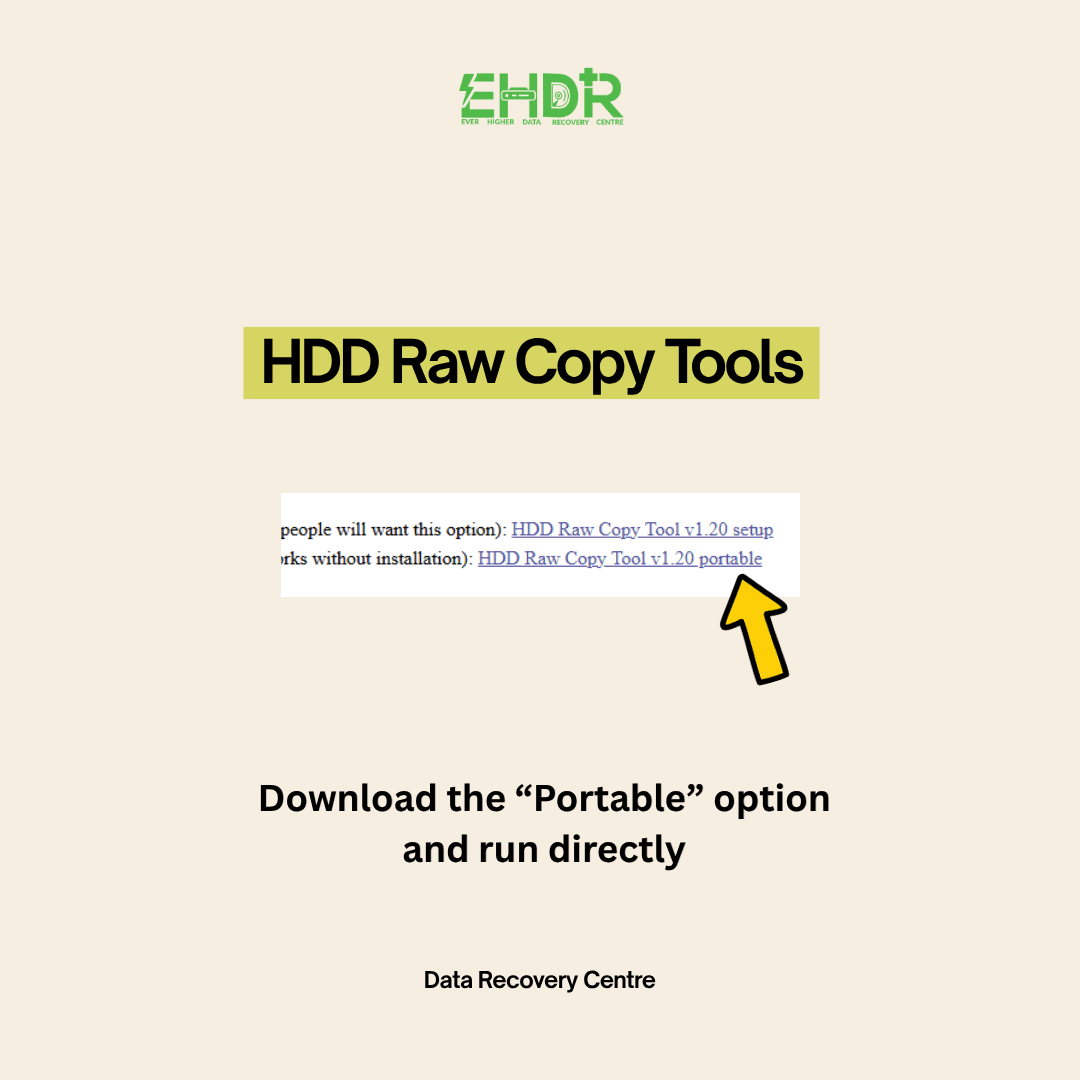
Step 1: Download and Run HDD Raw Copy Tool
Download HDD Raw Copy Tool from a trusted source and select the Portable version.
Run the application and connect both the original RAW drive and the healthy destination drive.
Wait for the application to detect the available storage devices.
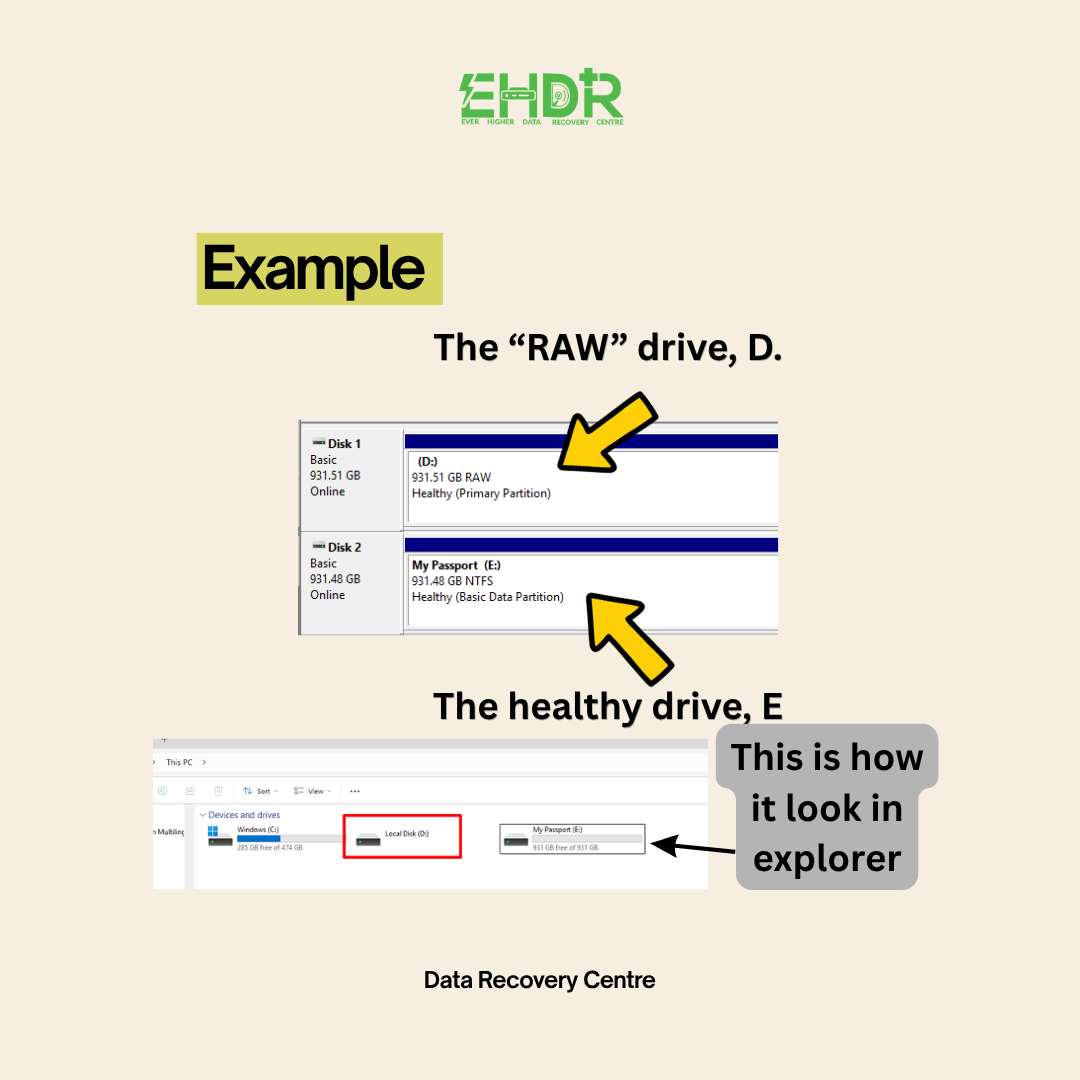
Step 2: Identify the original RAW drive (SOURCE)
In our example, the original RAW drive is a Toshiba drive shown as D: in Windows Explorer.
Your drive may have a different manufacturer, capacity or drive letter.
In HDD Raw Copy Tool:
- Select the original RAW storage device.
- Confirm that the application displays “Please select SOURCE”.
- Click Continue.
The SOURCE is the original drive from which the data will be copied.
Check the device information carefully. Do not rely on the drive letter alone to identify the correct device.
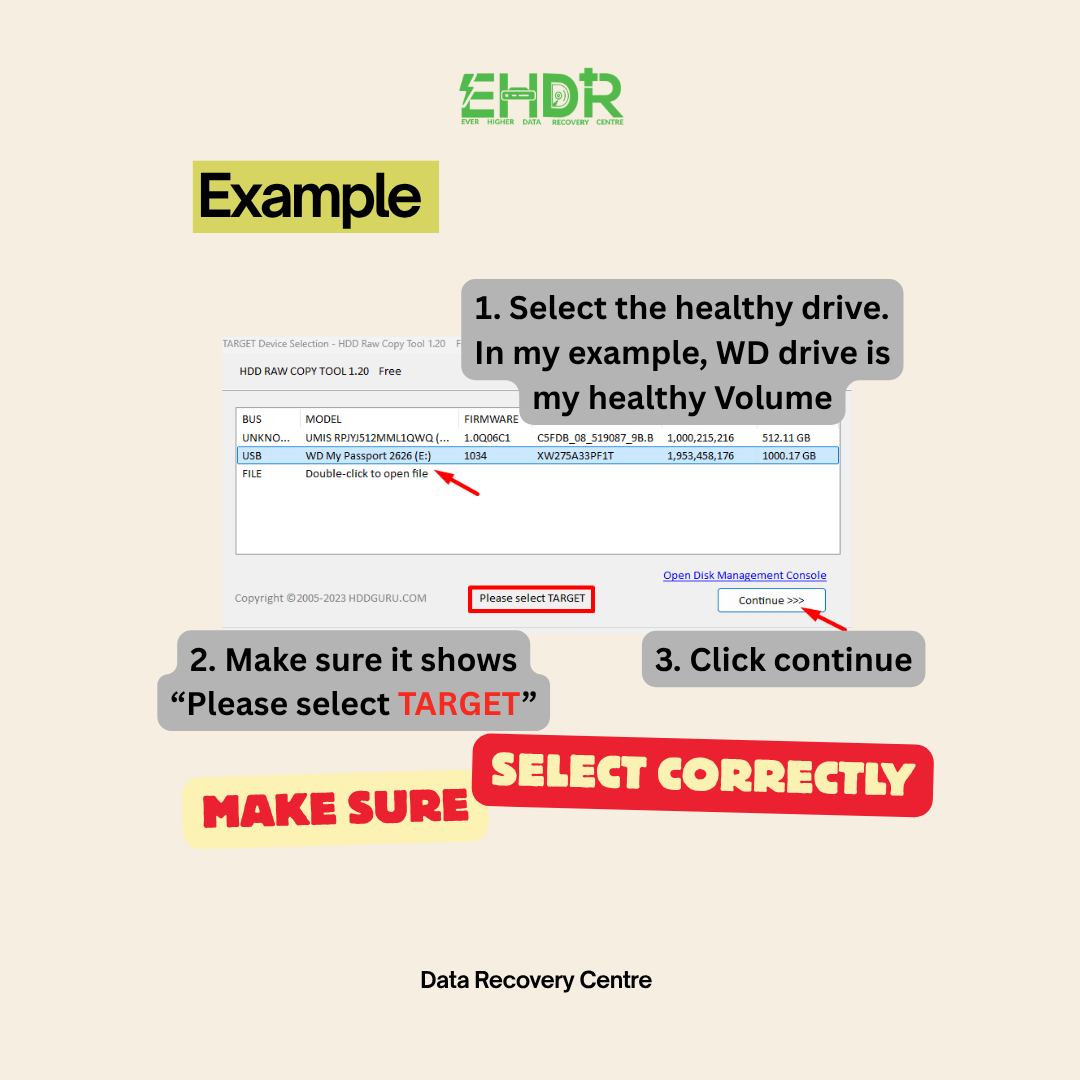
Step 3: Select the healthy destination drive (TARGET)
In our example, the destination is a WD drive shown as E: in Windows Explorer.
In HDD Raw Copy Tool:
- Select the intended healthy destination drive.
- Confirm that the application displays “Please select TARGET”.
- Click Continue.
The TARGET is the drive that will receive the cloned data.
Double-check your selection. Selecting the wrong target can overwrite another drive’s data.
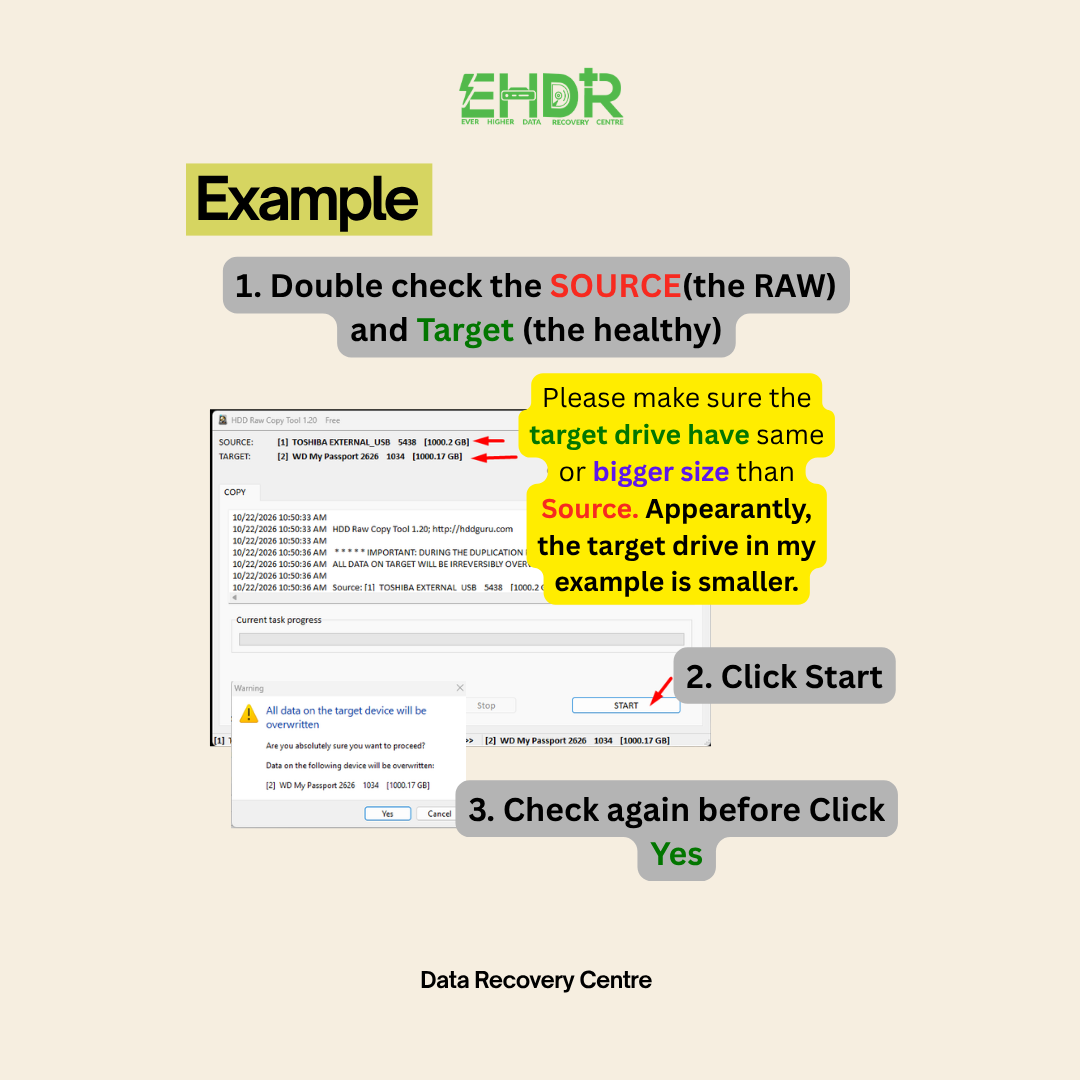
Step 4: Double-check SOURCE and TARGET
Before starting the operation, review both selections.
Confirm that:
- SOURCE is the original RAW drive.
- TARGET is the intended healthy destination.
- The destination has sufficient usable capacity for the source.
- The destination contains no important data that needs to be retained.
In our demonstration, the Toshiba drive is the SOURCE and the WD drive is the TARGET.
If anything does not match your expectations, stop and check before proceeding.
Step 5: Click Start and confirm the operation
Once both devices have been verified, click Start.
The application will display a further confirmation before proceeding.
Review the source and target again, then click Yes only when you are certain that the selections are correct.
This is an important checkpoint because the target’s existing contents may be overwritten during cloning.
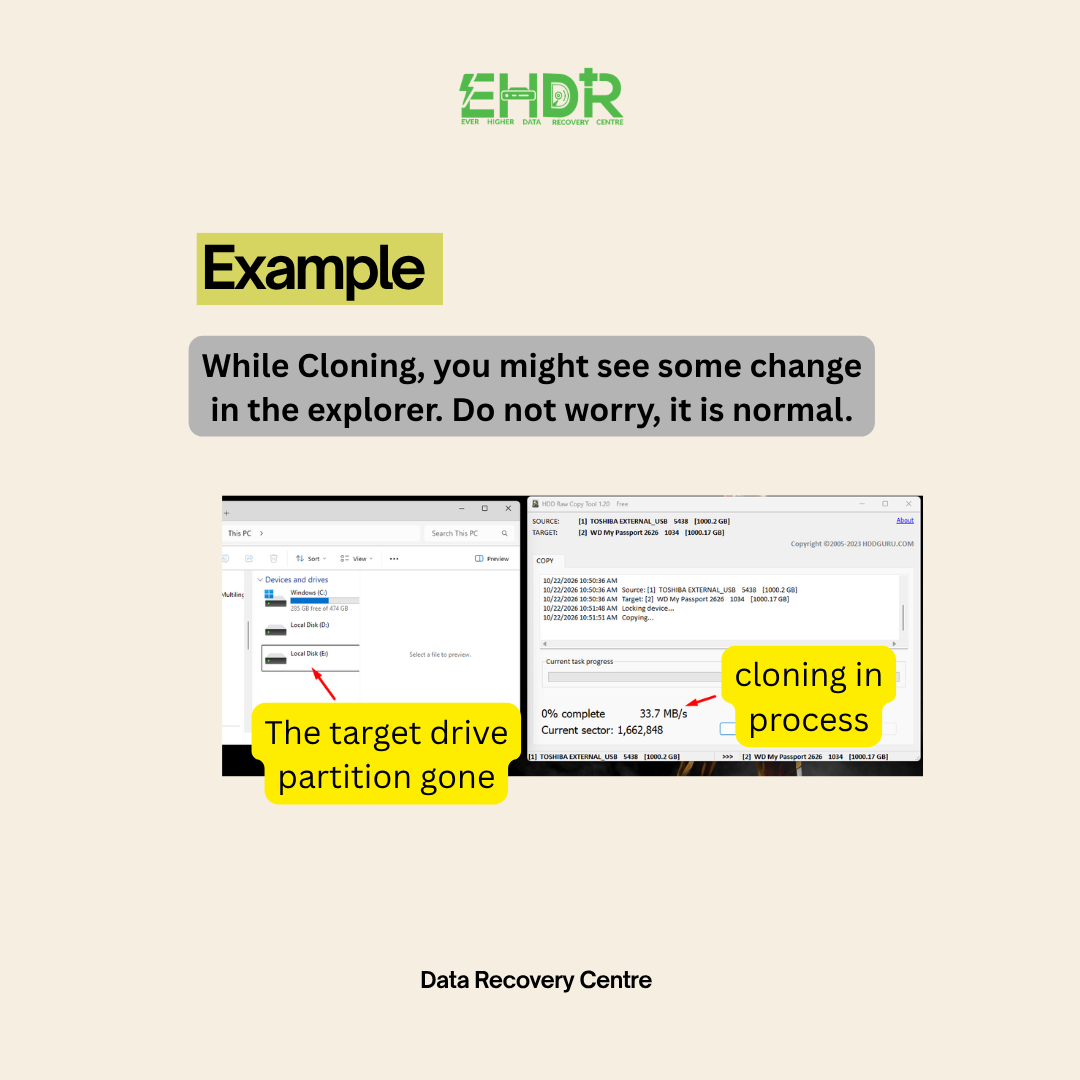
Step 6: Monitor the cloning process
Once cloning begins, allow the process to run and monitor its progress.
In our example, the target drive’s partition disappeared from Windows Explorer during cloning.
This can happen because raw cloning overwrites sectors on the target, including its previous partition information. Windows may therefore stop displaying the target as a normal accessible volume.
Do not assume that a disappearing drive letter means the cloning process has failed. Equally, do not assume that it means cloning has succeeded.
Check the cloning tool’s progress and any reported errors.
Avoid disconnecting the drives while the operation is running. If the source repeatedly freezes, disconnects or fails to read, stop and reassess the situation rather than repeatedly restarting the process.
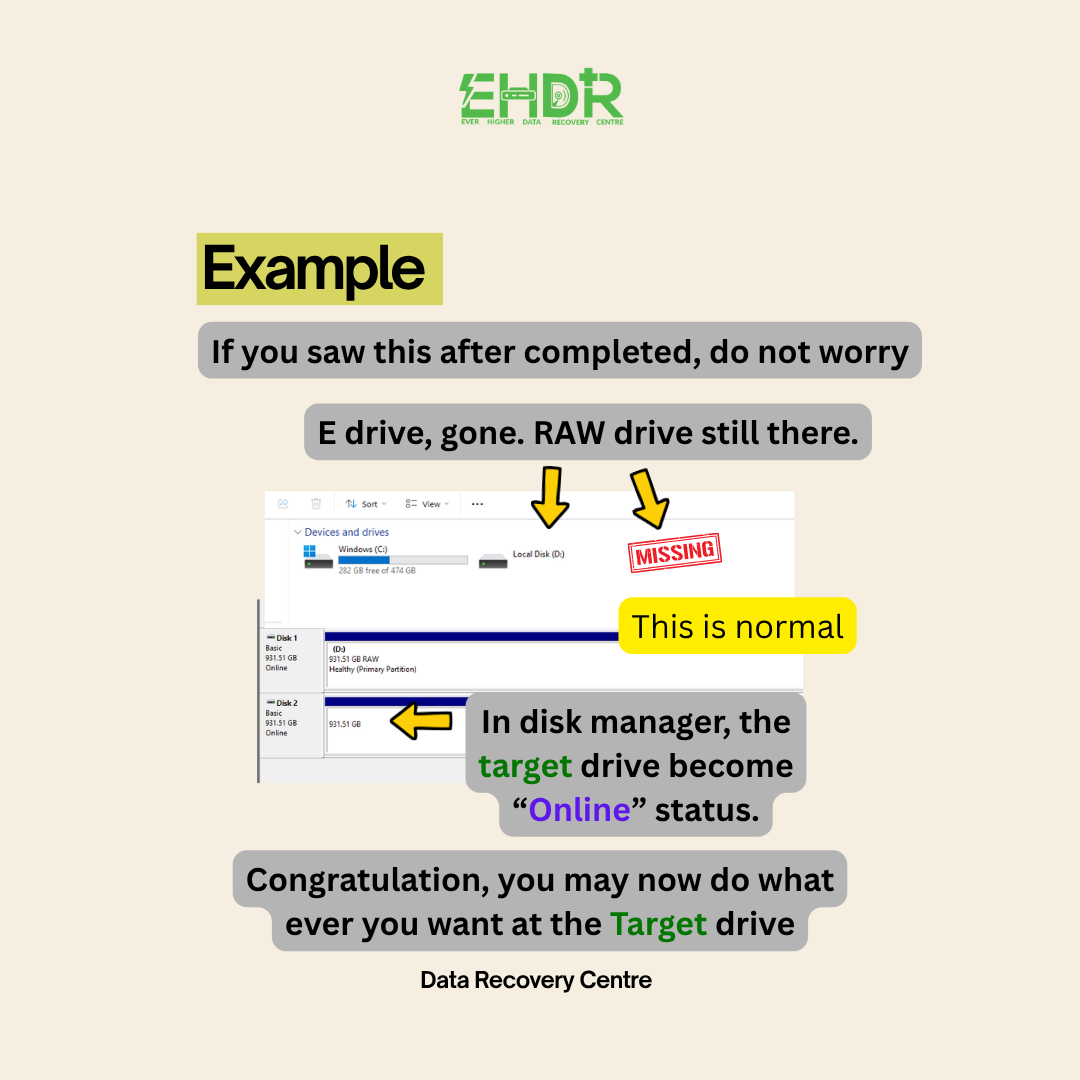
Step 7: Understand what you may see after cloning
In our example, after the cloning process completed,you might see what shows above. Do not worry, this is normal.
- The target drive no longer appeared under its previous drive letter in Windows Explorer.
- The original RAW drive remained present.
- Windows Disk Management showed the target drive as Online.
Your result may differ depending on the source, destination and cloning outcome. Review the cloning tool’s completion status and any reported errors before deciding what to do next. Do not format or initialize the target drive. Doing so, the cloned data will be affected, you will need to reclone for the best result in attempting DIY recovery.
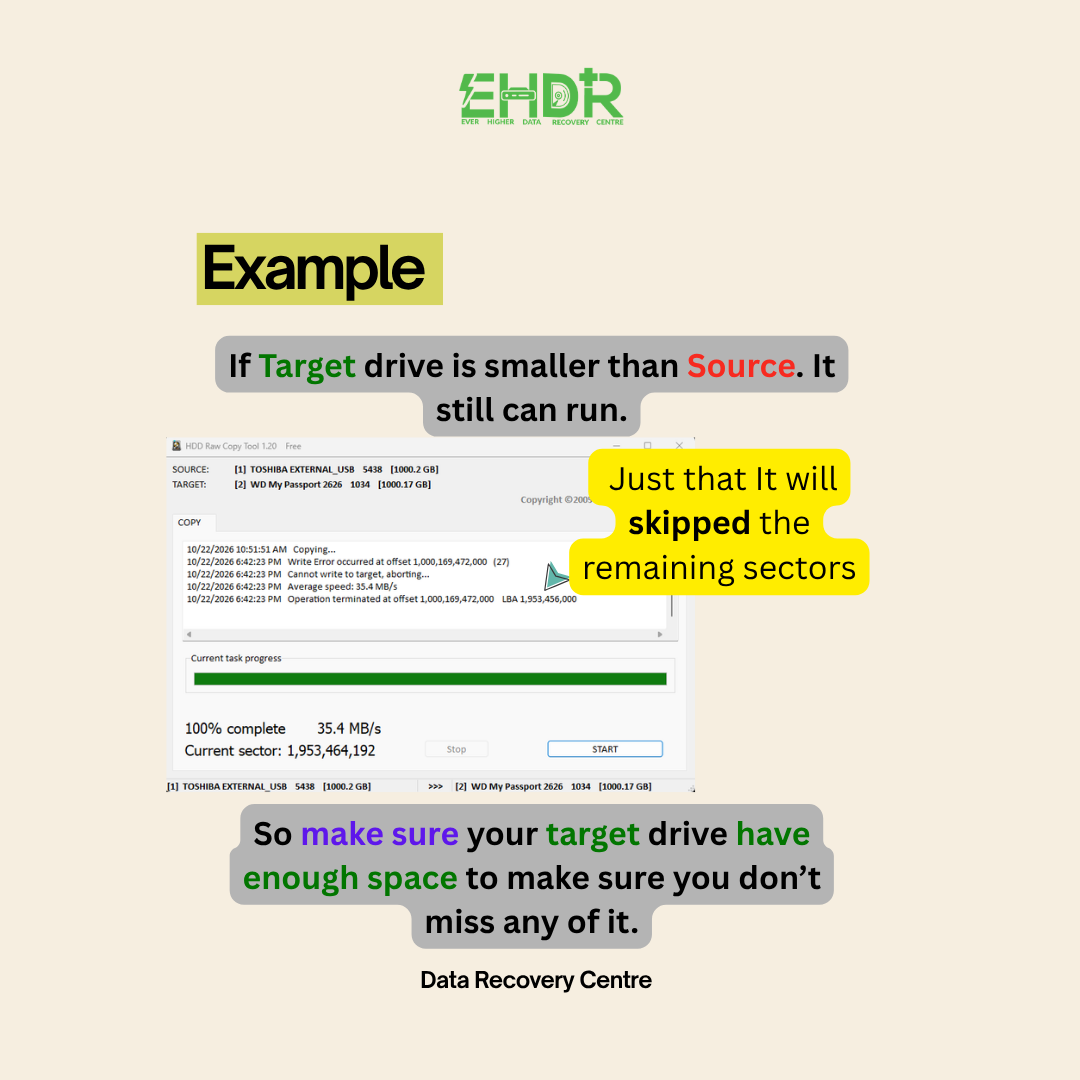
Highlight In Our Example
While preparing this content, the target drive’s size is smaller than the source. So the remaining sectors that do not have enough space would be skipped.
That is why it is not recommended to use a smaller storage size to create a clone, you might skip some of the sectors, like skipping some of your storage room while moving out. So, a smaller target may produce an incomplete copy, potentially leaving important information.
Times Taken
In our example, cloning a 1TB HDD took almost eight hours.
This is an example from this cloning session, from a USB to USB.
Larger drives may take longer, and a failing drive may encounter delays or fail to complete.
Allow sufficient time for the process, but do not keep forcing a clone to proceed if the source or target shows signs of hardware failure.
When should you stop DIY recovery?
If your drive keeps disconnecting, disappears during the operation, repeatedly hangs, encounters read errors or hears abnormal sounds. These symptoms may indicate a hardware issue, although some can also result from connection problems. Continued cloning may worsen the condition of a physically failing device.
For company-owned storage or devices containing sensitive business information, consult your IT department and follow your organisation’s data handling procedures before attempting recovery.
Conclusion
When Windows reports that a storage device’s file system is not recognized, it is tempting to try different repair methods immediately.
However, taking time to assess the situation can help you avoid unnecessary risks.
By cloning your drive, you are preparing a separate copy for extra recovery attempts even though it does not guarantee a successful recovery.
If you encountered the situation above and require help recovering your data, feel free to contact us for advice.
EHDR, We Leave No Data Behind.