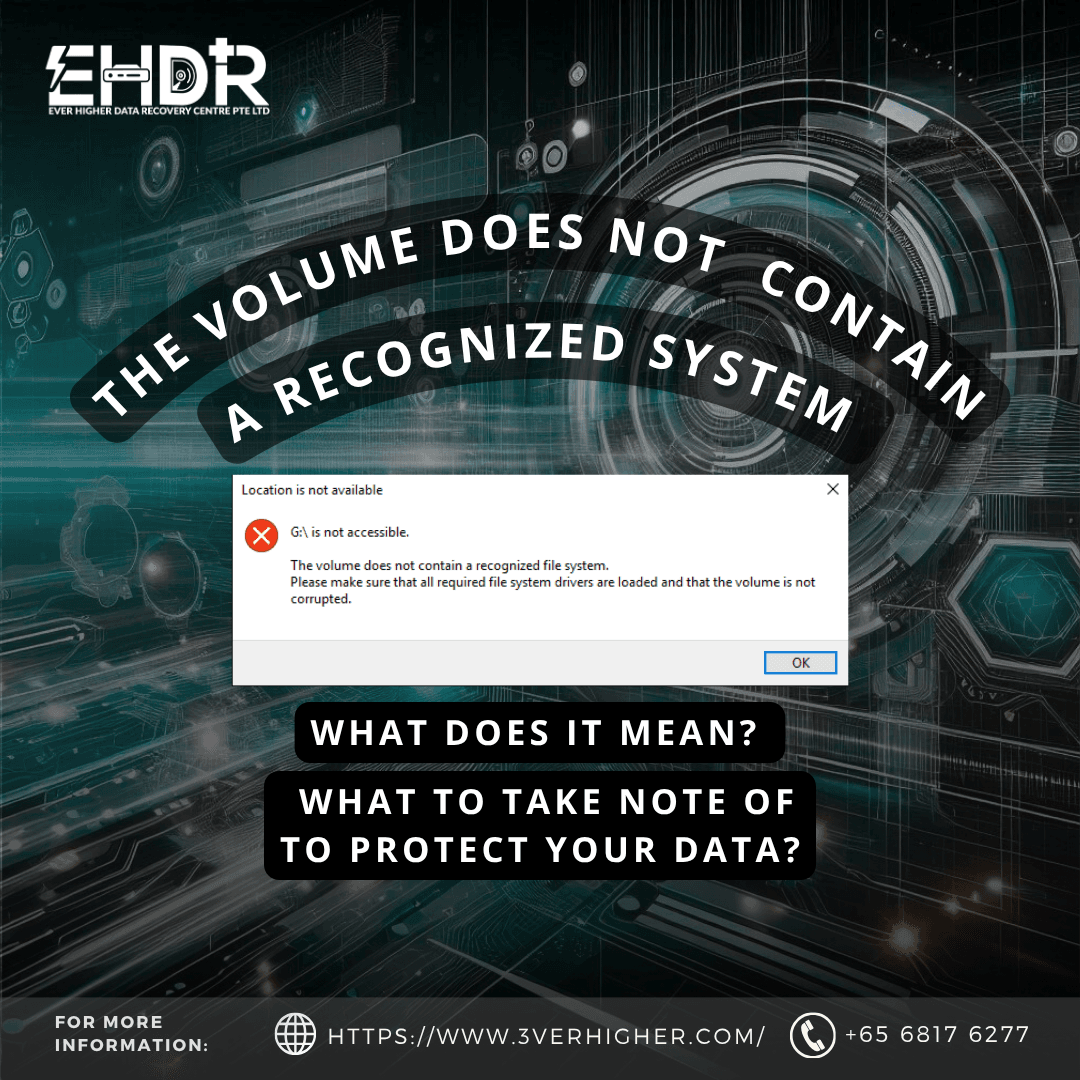
Received the error message above? This error indicates that Windows can access the disk but cannot understand the file system structures. On a single drive, this is often repairable. On a RAID array or NAS volume, it may signal lost controller metadata or degraded parity. Be careful when you try to fix it. Using incorrect repair commands or the self-repair function might permanently overwrite your data.
What Does It Mean
When you see this message, usually your disk or NAS is still detectable by the operating system, but its logical structure is unreadable. Not to worry if you saw this message, because your data remains intact in your drive.
To confirm, it typically appears alongside the symptoms:
- Disk Management shows the volume as RAW.
- CMD replies with this error message "The type of the file system is RAW. CHKDSK is not available for RAW drives." when you use the CHKDSK command.
- Windows prompts "You need to format the disk before you can use it"
What Causes It
1. Corrupted NTFS Boot Sector or MFT
NTFS stores the volume's boot sector and a backup copy in the volume's last sector. If the primary is damaged by a power loss, a bad sector, or a failed write. If the Damage is done to the MFT, it is more serious and causes partial or total directory loss.
*MFT stand for Master File Table. It holds the details of every file and directory on your storage.
*NTFS stand for file system. It was created when you first used your drive. Just like, ExFat, HFS, APFS, ext4, & etc.
2. Damaged Partition Table (MBR or GPT)
A corrupted partition table can cause the volume to mess up and prevent the operating system from identifying the file system. This is usually caused by firmware errors in USB or SATA bridges.
*Partition Table is a data structure tells your operating system (NTFS) how the drive is divided into separate sections. A healthy drive should have this set environment
Storage Device > Partition Table(How many partitions are set) > File System(Format as NTFS)> MFT (Records of files and folder path location)
3. Degraded or Failed RAID Virtual Disk
If this happens in a NAS or Server, it is related to RAID structure errors. If a server with three drives configured in RAID 5 has two failed drives during a rebuild, the virtual disk can come online with incomplete or inconsistent stripes.
4. Drives from a NAS Volume
NAS use XFS, ext4, Btrfs, and other file systems. Windows cannot read these file systems if you connect a NAS member disk directly or through a USB dock. This is where you see this error.
What To Do If You Encounter This Error
a. Normal External Drive
- Stop using it. Unmount or take the volume offline.
- Do not format, initialize, or do anything that shows in Windows prompts.
- Do not run any software or CMD scan until the drives are cloned.
b. Drive with RAID configuration, if the server or NAS won’t boot up. Do not let it reboot itself repeatedly. It might initialize
Suggested Steps Before Any DIY Recovery
Create an Image before repairing. Create a sector-level image of each member drive to separate storage. Work on the image, not the original. Run partition recovery, boot sector repair, or file carving against the clone.
When to Stop If DIY Method Failed and Reach Out To A Data Recovery Centre
For a normal storage drive, stop. When you hear clicking, the PC hangs while the drive is connected, it is slow to extract (like taking weeks), or you see the bad sector count increase.
If it is a drive from a server or NAS where self-initialization was completed, or interrupted halfway. STOP right there.
Conclusion
The error means the logical structure is unreadable, not necessarily that the data is gone. The safest way is to stop writing and image the drives. Most of the time, data loss is not caused by the device's errors, but by human mistakes that cause data to be lost permanently. Feel free to contact us if you need any advice.
EHDR, We Leave No Data Behind.