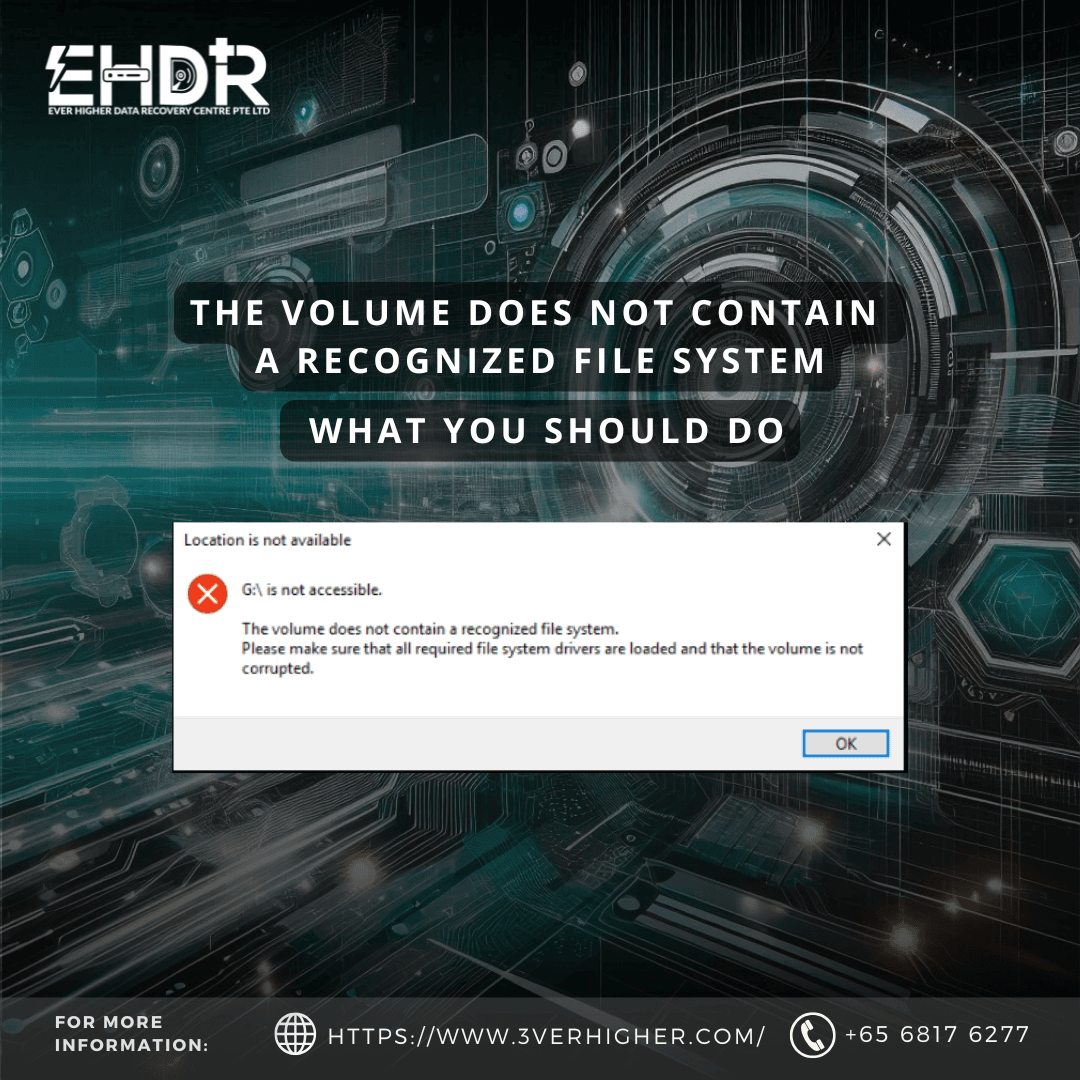
You plug in your external hard drive, USB thumb drive, or SD card, expecting to access your files, but instead Windows shows this message:
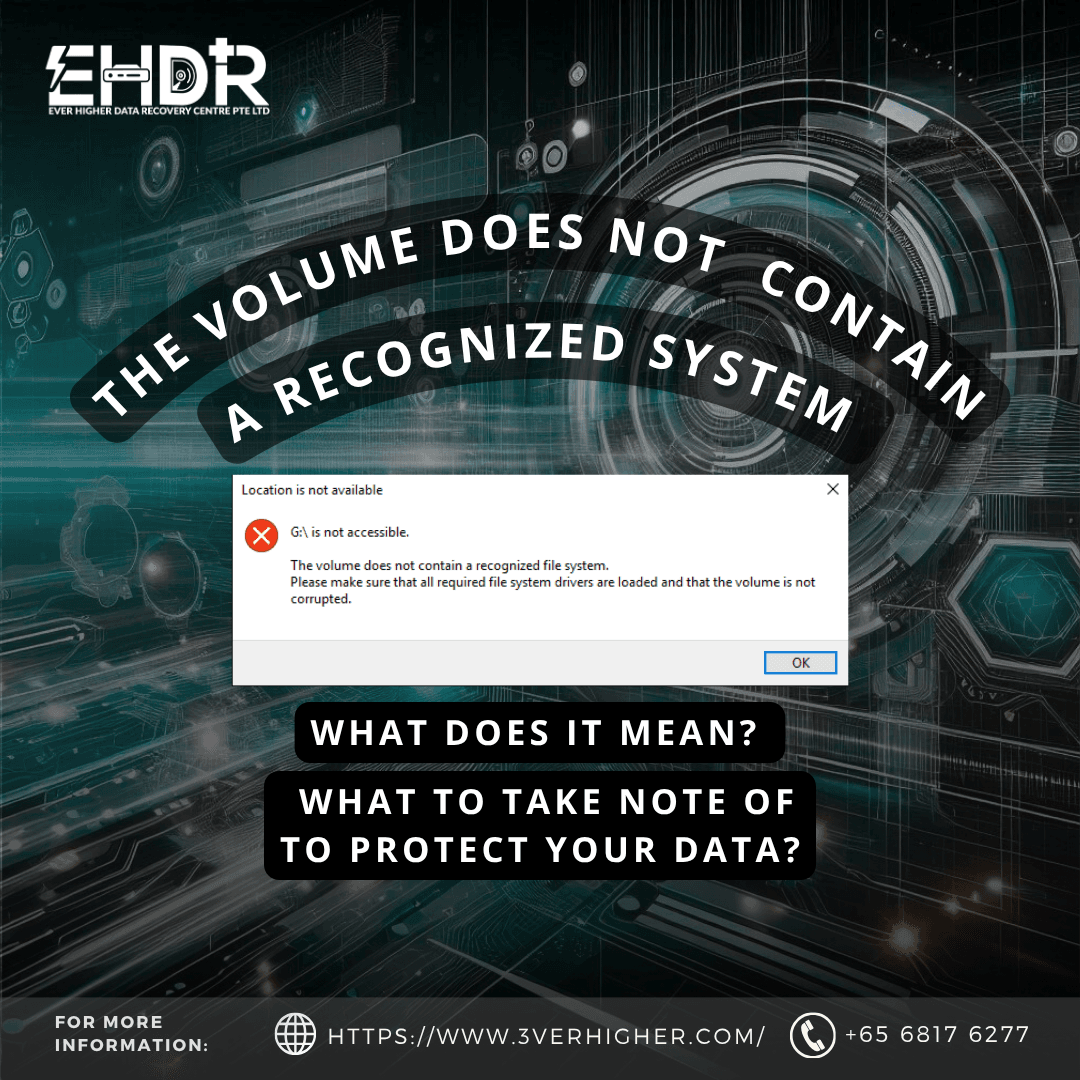
"The volume does not contain a recognized file system."
Panic mode kicks in, especially if the drive contains work documents, family photos, or important business files.
The good news? This doesn't always mean your data is gone.
In many cases, Windows can still detect the drive, but it can no longer understand the file system that tells it where your files are stored. Before you click anything, here's what you should know.
What Does This Error Mean?
Every storage device uses a file system, such as NTFS, exFAT, or FAT32, to organise your data.
When Windows says it doesn't recognise the file system, it usually means the drive has become RAW. In simple terms, Windows can see the drive, but it doesn't know how to read it anymore.
This can happen because of:
1. You unplugged the drive too quickly
Removing a drive without safely ejecting it, especially while files are still being copied, can damage the file system.
2. The drive is starting to fail
Hard drives develop bad sectors over time, while SSDs and flash drives have a limited lifespan. If the damaged area contains important file system information, Windows won't be able to read it.
3. The drive was formatted on another operating system
Drives formatted in APFS or HFS+ (Mac) or EXT4 (Linux) aren't natively supported by Windows, so Windows may report that it doesn't recognise the file system.
4. Power interruption
A sudden power outage or disconnect during formatting or file transfer can corrupt the partition or file system.
Before You Do Anything
This is the stage where many people accidentally make the situation worse.
1. Don't click "Format Disk"
Windows may ask you to format the drive before you can use it.
Don't do it.
Formatting creates a new file system and can make recovering your original data much more difficult.
2. Don't immediately run CHKDSK
A lot of online guides recommend running:
chkdsk /f
While CHKDSK is useful for minor file system errors, it's not recommended if the drive is physically failing or already showing as RAW.
In some situations, it can overwrite important file records and reduce the chances of a successful recovery.
3. Don't keep unplugging and reconnecting the drive
If the drive is developing hardware issues, every power cycle puts more stress on it.
If you hear clicking, beeping, or grinding noises, stop using it immediately.
Do check the basics
Before assuming the drive is damaged:
- Try another USB port (preferably one directly on your PC)
- Change the USB cable
- Avoid using USB hubs
- Test the drive on another computer if possible
Sometimes the issue is surprisingly simple.
Safe DIY Checks You Can Try
If the drive isn't making unusual noises and the data isn't business-critical, you can try these non-destructive checks first.
1. Check if it's a compatibility issue
If you have access to a Mac or Linux computer, plug the drive in there.
If it opens normally, the issue may simply be that Windows doesn't support the drive's file system.
2. Update your storage drivers
Sometimes Windows itself is the problem.
- Click on Start, select Device Manager

- Expand Disk Drives and Universal Serial Bus Controllers
- Right-click your device
- Select Update Driver

- Restart your computer afterward and try again.


3. Run System File Checker (Disconnect Your Drive)
Corrupted Windows system files can occasionally prevent drives from mounting properly.
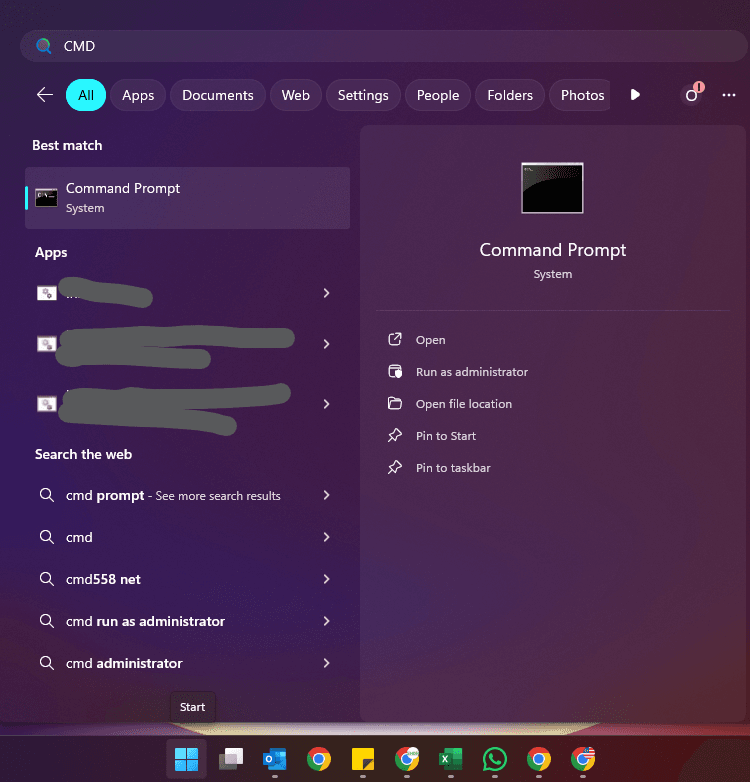
- Click Start, search Command Prompt, click Run as Administrator on your right.

- Insert this command, sfc /scannow and hit enter.
- Once it finishes, restart your computer and reconnect the drive.
4. Check Disk Management
- Click on Start, select Disk Management

- Look at how Windows detects the drive.

If it appears as:
- RAW
- Unallocated
- 0 Bytes

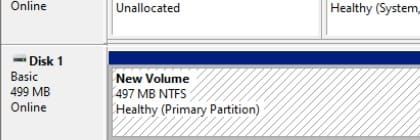
then the problem is likely beyond a simple Windows issue.
At this stage, it's usually safer to stop using the drive before more damage occurs.
Should You DIY or Send It for Recovery?
Issue | Suggestion | Explaination |
| Drive was unplugged during file transfer | Try recovery software first (if the drive is healthy) | Usually a logical file system issue. |
| Drive makes clicking, beeping or ticking sounds | Go to a professional recovery lab | This is often a hardware failure. DIY attempts can make it worse. |
| Drive shows as RAW or 0 Bytes | Professional recovery recommended | Could be firmware corruption or serious media damage. |
How EHDR Can Help
If the drive contains important files, it's usually safer to let professionals handle it before more damage occurs. Feel free to contact us for further advice.
EHDR, We Leave No Data Behind.