
An undetected Solid State Drive (SSD)? In this situation, it could trigger instant panic, especially when critical business files, financial records, or irreplaceable personal memories are stored inside. Unlike traditional hard disk drives (HDDs) that often emit grinding or clicking sounds before failing, SSDs usually fail silently or vanish from your system without warning.
Understanding why your drive disappeared and knowing the exact boundary between a simple fix and the risk of permanent data loss, so you can make the right decision about whether to DIY.
Phase 1: Safe DIY Checks (Zero Data Risk)
Before assuming the worst, run through these basic checks. These steps address simple connection and system configuration issues without altering or stressing the data stored on the NAND memory chips.
1. Check Hardware & Connections
Connect the drive using a different SATA cable, USB-C adapter, or port. For internal M.2 NVMe drives, carefully power off your PC and reseat the drive in its slot.
Test the internal PC on Another System by plugging the SSD into an SSD enclosure and connecting it to another PC or Mac. If it is detectable and usable, it is most likely related to an operating system error.
2. Assign a Drive Letter (Windows)
If the drive is physically healthy, Windows may have forgotten to assign it an access path.
Press Win + X and open Disk Management.

Look at the second line or Disk 1. If it shows a volume name but no letter (e.g., (D:)), right-click the volume, select Change Drive Letter and Paths, click Add, choose a letter, then click OK. Your drive might show up and work as usual.
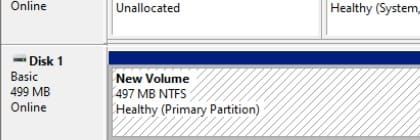

(*Right Click Drive 1 instead, then select the option that shows in this image.)
3. Initialization Prompts
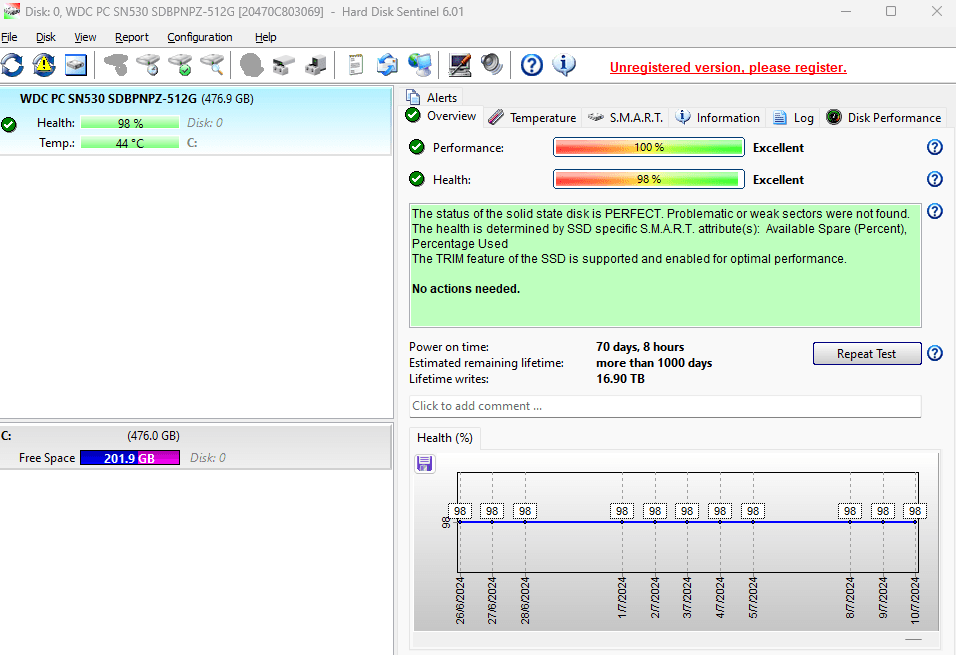
Windows asks to “Initialize Disk” or Mac prompts to “Format/Erase.” Initializing wipes critical file allocation maps. At this stage, skip the action and check your drive’s health. If the health status shows as healthy, you may try using third-party recovery softwareor CMD Chkdsk to scan and recover. BUT, if the health is critical or, this has reached a RED FLAG threshold.
The “Red Flag” Threshold
STOP DIY Attempts Immediately If Your Data Matters. Running normal software utilities like CHKDSK or performing scans using third-party applications without understanding the SSD condition will cause it to die completely. Imagine you force a patient who just had an accident to walk himself to the hospital, make sense?
Below are symptoms for your reference:
- Initialization Prompts: As stated in point 3, the health condition is degraded or critical, further scanning will cause the NAND Flash chip to degrade further.
- Raw or 0 Bytes Capacity: The drive shows up under generic controller names like SATAFIRM, ID or displays 0 Bytes capacity.
- System Freezes: Plugging in the drive causes your OS to lag, freeze, or display a Blue Screen of Death (BSOD).
- Power Surge / Water Exposure: The drive failed following an electrical outage or physical liquid spill.
Phase 2: Professional SSD Data Recovery in Singapore
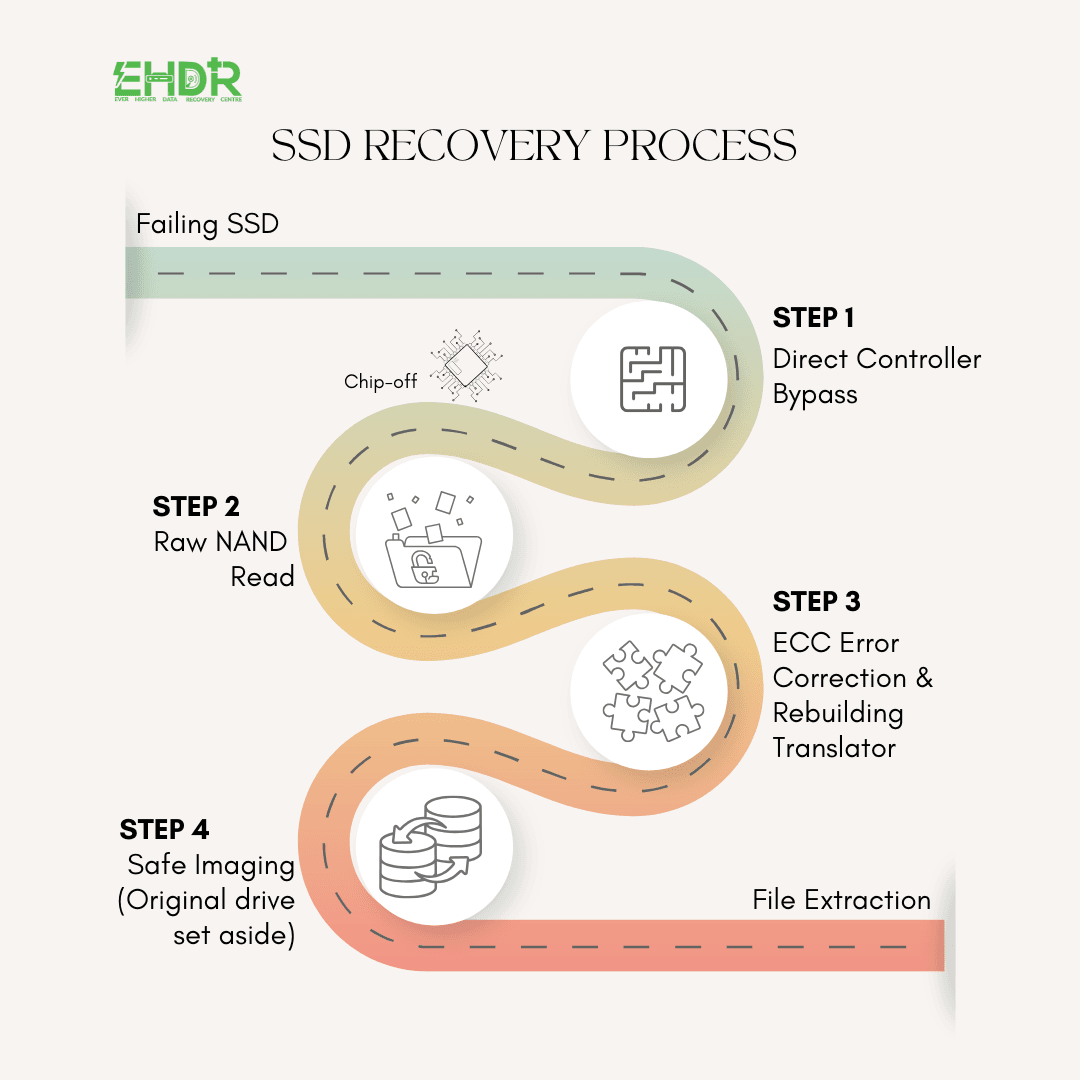
When hardware controllers fail, or NAND cells degrade beyond standard reading parameters, specialized laboratory hardware is required.
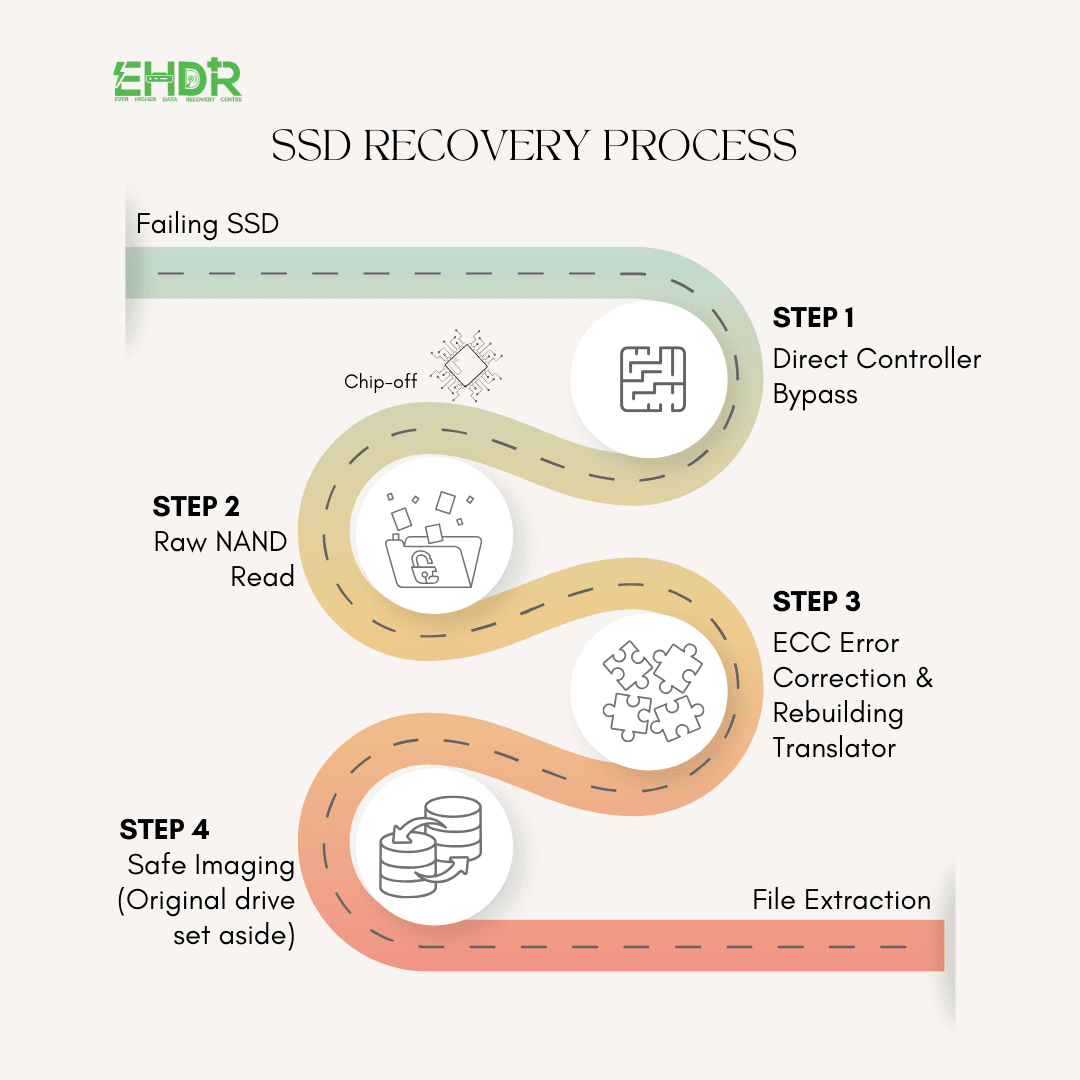
- Controller Bypass: Utilizing specialized hardware (such as the PC-3000 Flash array) to communicate directly with individual NAND memory chips.
- Chip-Off Recovery: In extreme cases, desoldering the flash memory chips and reading them using dedicated hardware.
- Firmware Emulation: Rebuilding damaged internal translator tables to safely reconstruct your file structure.
Need Urgent Help with an Undetected SSD?
If your SSD contains critical business or personal data and is no longer detected, don’t risk permanent data loss through repeated power cycles. Feel free to contact us for advice.
EHDR, We Leave No Data Behind.